




Advertisements
Block Editor vs. Classic Editor? Which one is better? WordPress is a popular platform for building websites, and since its inception, it has undergone numerous changes and improvements.
One of the most significant shifts was the introduction of the Block Editor (Gutenberg), which is now the default editor for the CMS (Content Management System).
Gutenberg is a block-based editor, similar to a page builder, while the Classic Editor features a much simpler, traditional interface. Since its release, Gutenberg has sparked debate among WordPress users, with some embracing it and many others preferring the old way.
This article will take a deep dive into the differences between the Block Editor and the Classic Editor. So, which one is the better choice for you? Read on to find out.
Advertisements
What Is the Block Editor?
The Block Editor, also known as Gutenberg, was first introduced with the release of WordPress 5.0 in December 2018.
It gets its name from its signature drag-and-drop functionality, which allows you to add various “blocks” to build your content. This system is especially powerful when creating complex pages, like a homepage.
WordPress made this change to offer users a more flexible and intuitive experience. By default, Gutenberg comes with over 15 blocks that cover nearly everything you need to create visually engaging pages.
Creating content with blocks is incredibly easy, enabling users to design attractive pages and posts without touching a single line of code.
What Is the Classic Editor?
The Classic Editor was the default editor in WordPress before Gutenberg took over. It’s a simple text editor that functions much like a standard word processor, such as Microsoft Word or Google Docs.
For years, the Classic Editor was the standard for all WordPress content creation. Although it has since been replaced by Gutenberg, you can still use it by installing the official Classic Editor plugin.
Advertisements
Block Editor vs. Classic Editor: Which Is Better?
Even though the Block Editor is now the default in WordPress, many users still stick with the Classic Editor. Here’s a detailed comparison of the WordPress Block Editor vs. the Classic Editor:
1. Editor User Interface
a. Block Editor Interface
Here is what the Block Editor interface looks like:
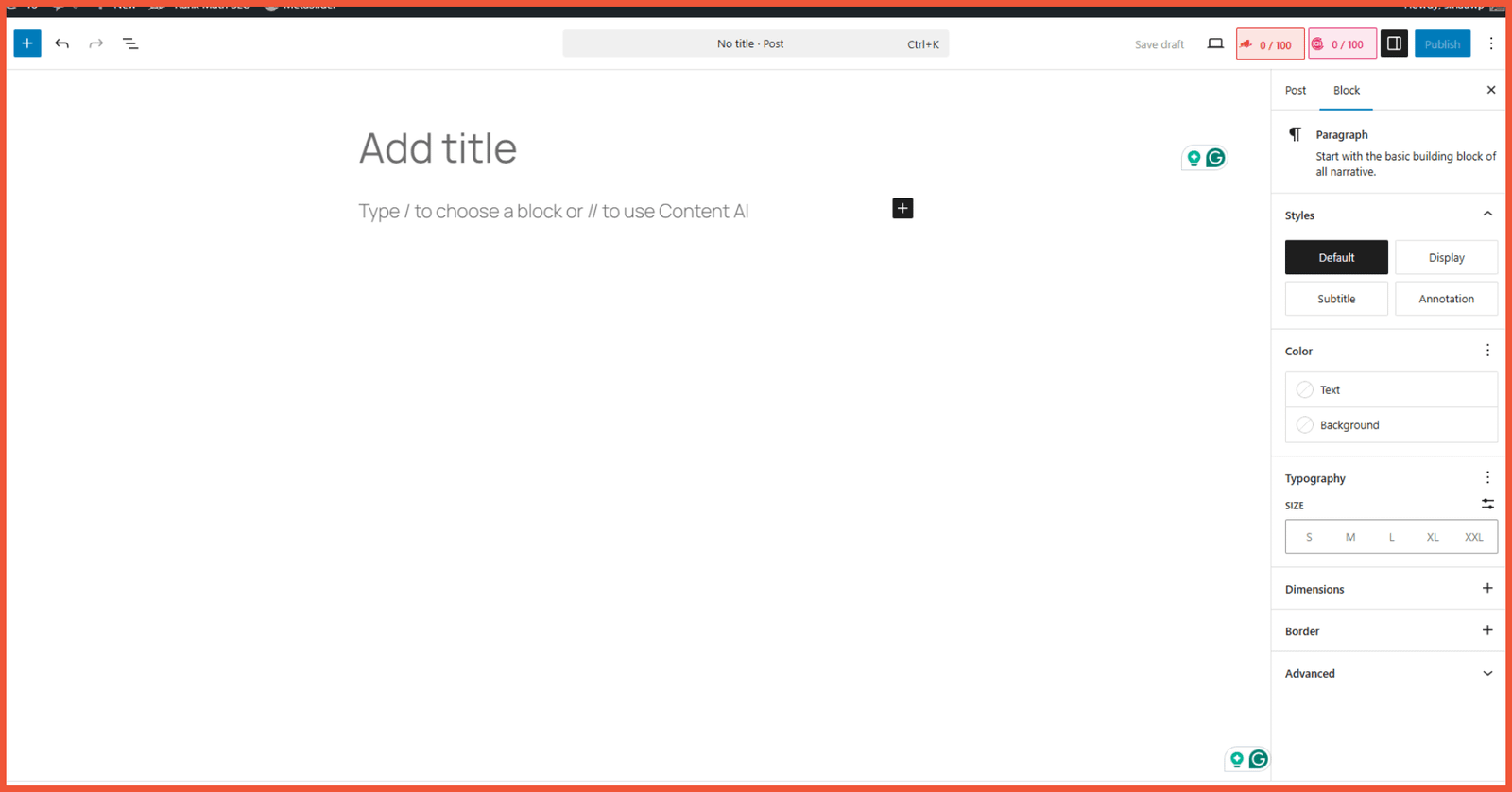
User interface of the WordPress Block Editor
As you can see in the image above, the Block Editor has a completely different look compared to the Classic Editor that many long-time users are familiar with.
The Block Editor boasts a more modern and clean interface. You can immediately add a title and start writing your content.
There’s a ‘+‘ icon to add new content blocks. Clicking it reveals a dropdown menu where you can browse all available Gutenberg blocks, including those from third-party plugins.
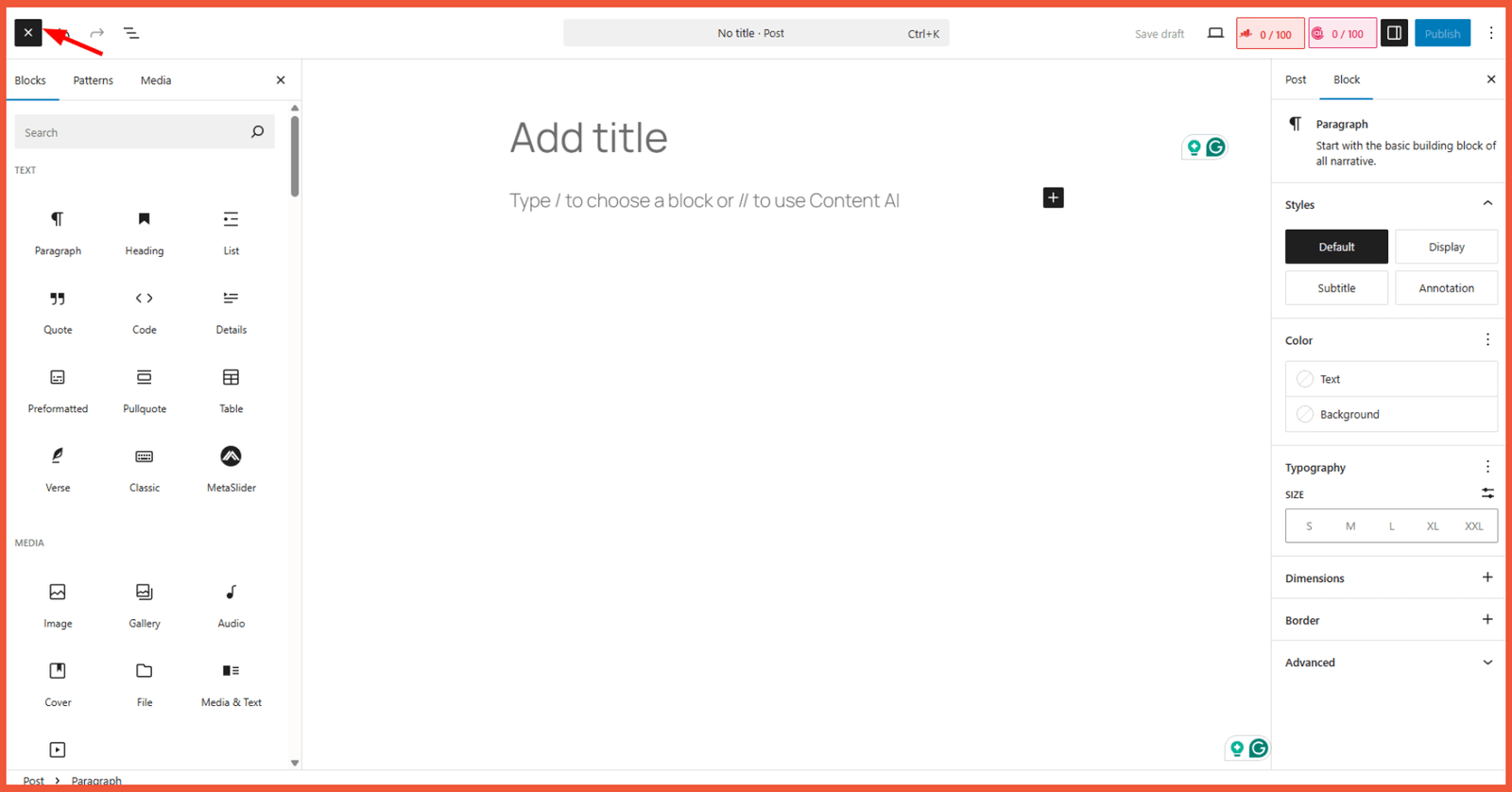
Alternatively, you can add blocks more quickly by typing a forward slash (/) followed by the block’s name. Editing blocks is also straightforward.
Simply click on a block, and its settings will appear in the right-hand sidebar. Each block offers different styling and customization options.
In the editor view, you can find document settings in the right sidebar under the “Post” or “Page” tab. These settings include post/page status, permalink, categories, featured image, and more.
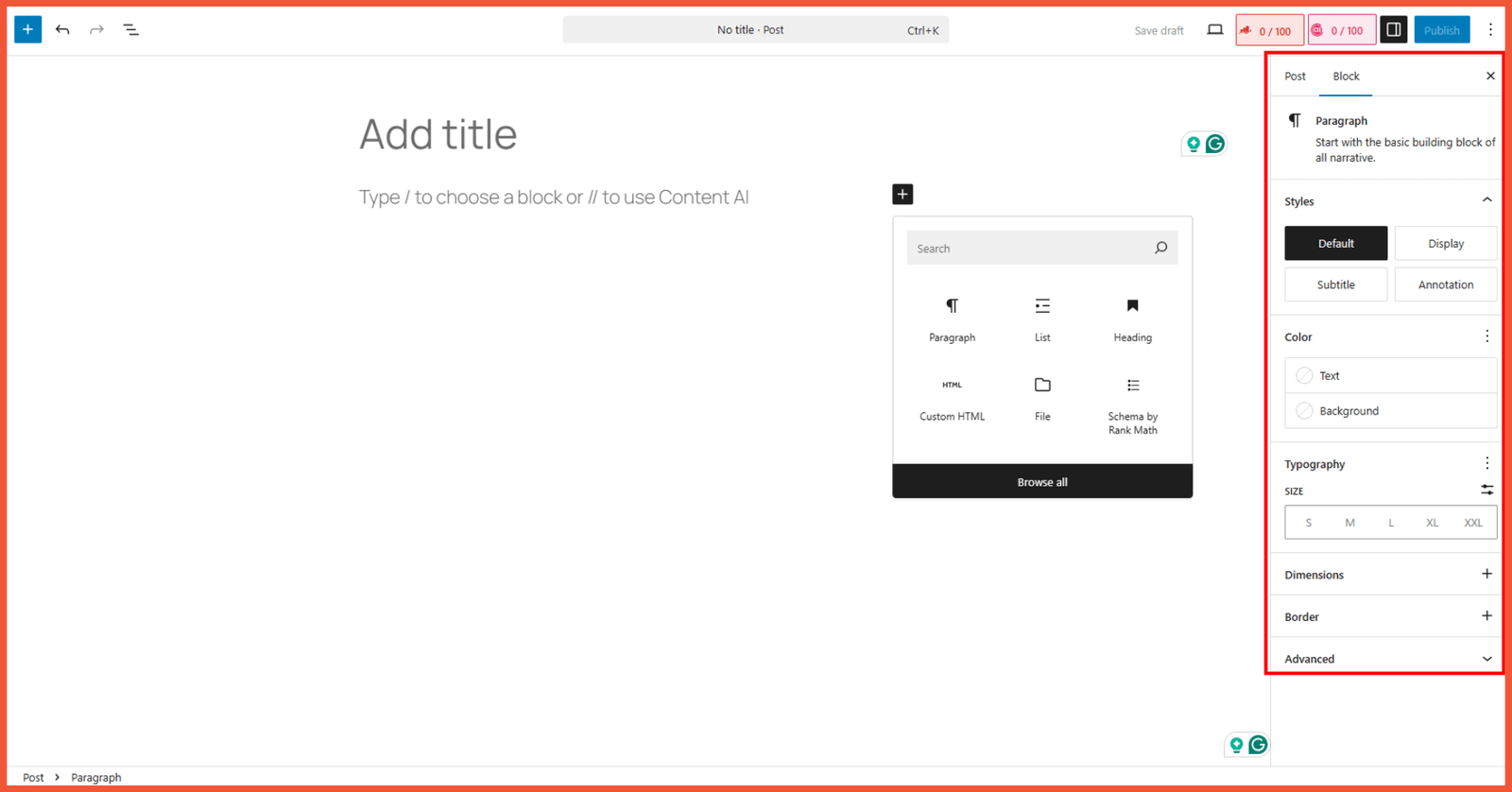
Gutenberg customization sidebar on the right
b. Classic Editor Interface
Here is what the Classic Editor interface looks like:
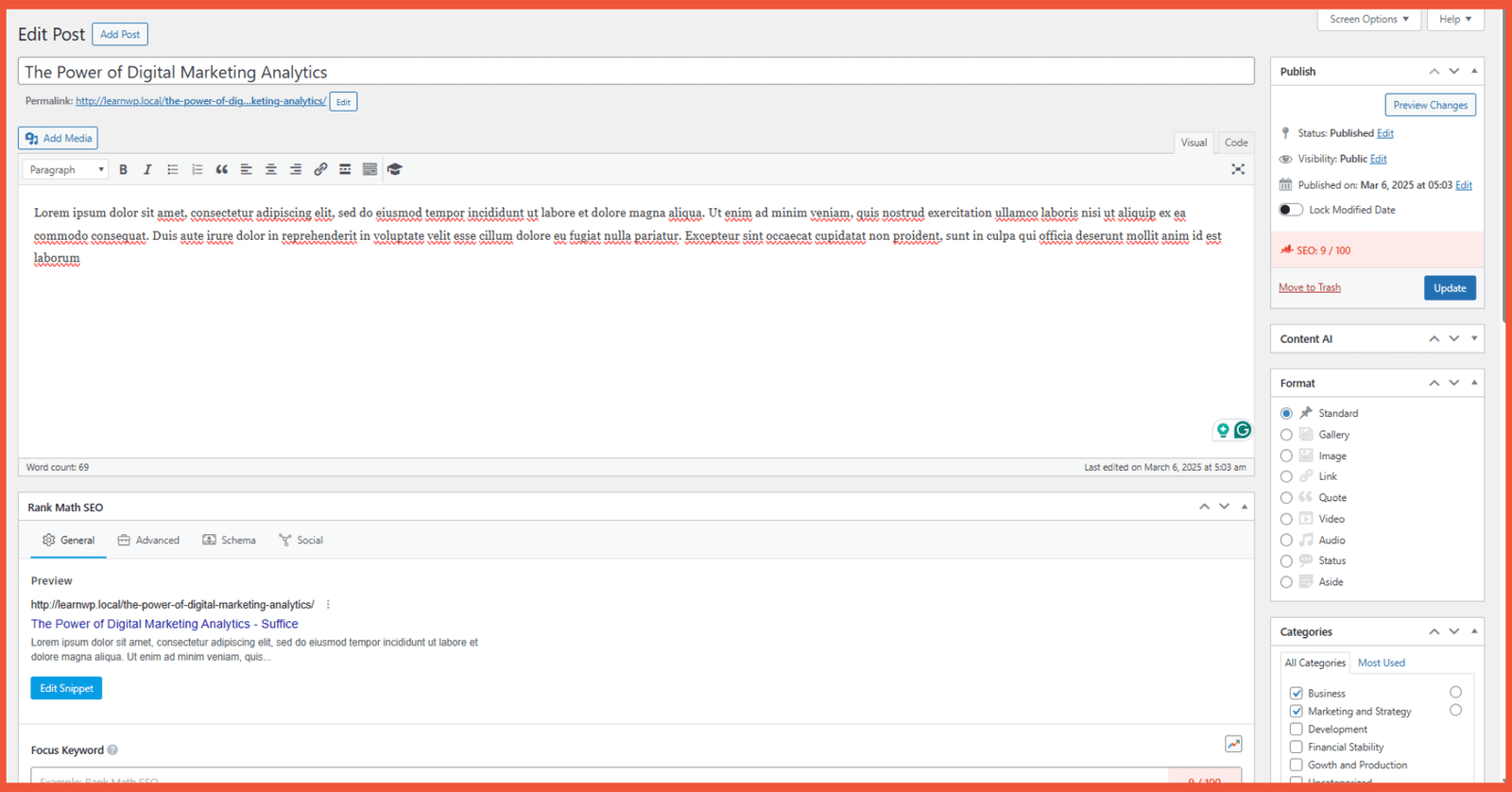
User interface of the Classic Editor
If you’ve been using WordPress for a while, this view is likely very familiar. It’s a simple editor with formatting options located in a toolbar at the top.
Unlike Gutenberg, which provides a wide array of blocks to enhance design and add content elements, the Classic Editor offers only basic formatting options.
Since it’s not a block-based system, there’s not much you can do to customize the layout directly within the editor.
Just like the Block Editor, the settings panel is located in the right-hand sidebar. The permalink setting, however, is found directly below the post or page title.
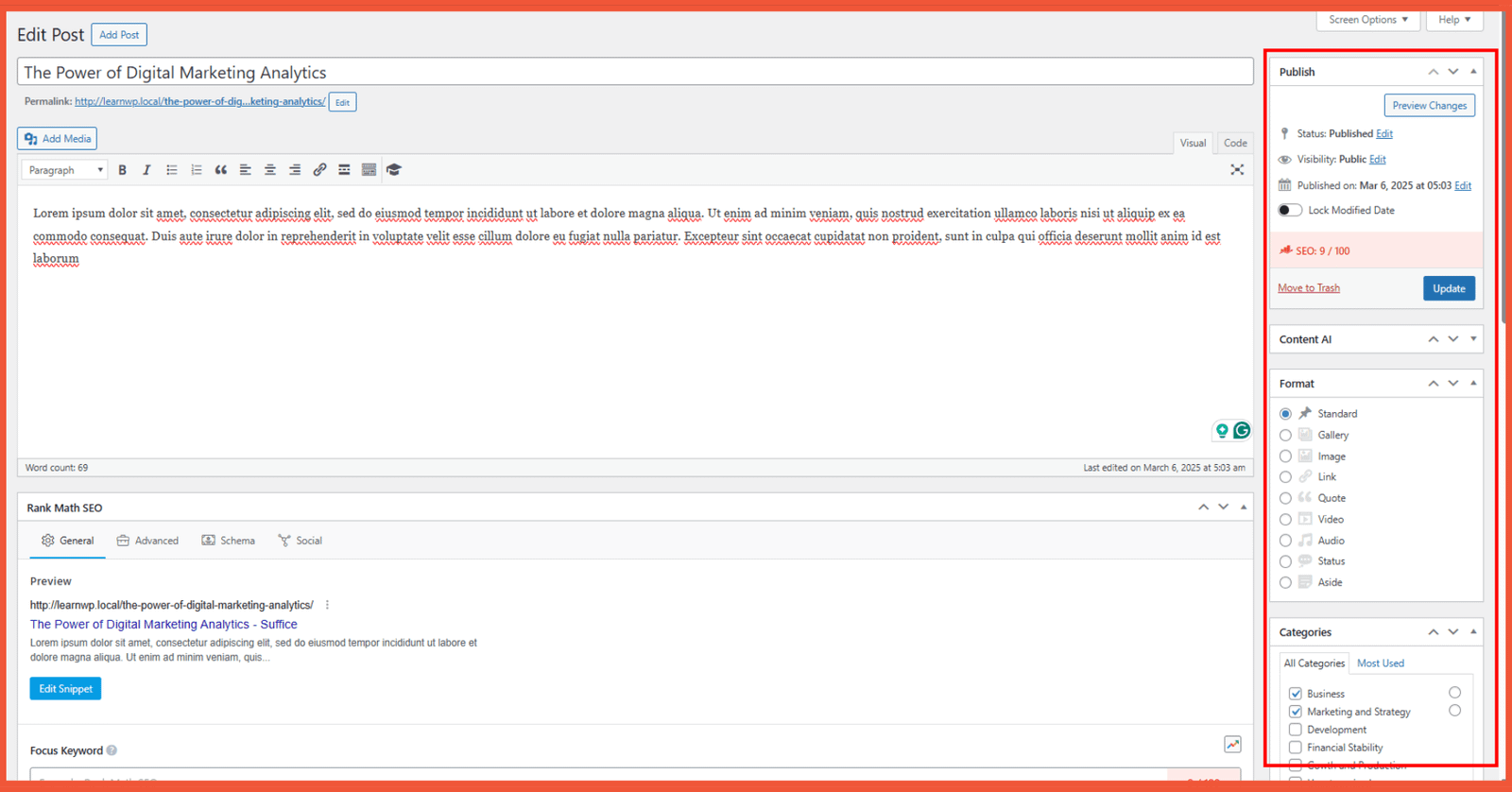
Sidebar view of the WordPress Classic Editor
In terms of structure, Gutenberg’s interface is similar to the Classic Editor’s. The primary difference lies in how the user interacts with the editor itself.
You can learn more by reading our beginner’s guide to using the Block Editor.
Advertisements
2. Performance
The performance of the Block Editor versus the Classic Editor has been a hot topic among WordPress users.
Also Read:
When WordPress first released Gutenberg, many users felt the visual editor caused lag and slowed down their content creation workflow.
Over time, however, the Block Editor has become significantly smoother. Crashes are now rare, even when multiple browser tabs are open simultaneously.
Advertisements
3. Ease of Use
Usability is a critical factor when comparing the Block Editor and the Classic Editor in WordPress. Here’s how they stack up:
a. Block Editor
Gutenberg, or the Block Editor, arrived at a time when many WordPress users were already transitioning to page builders. Beyond WordPress, many website builders and platforms already featured drag-and-drop user interfaces.
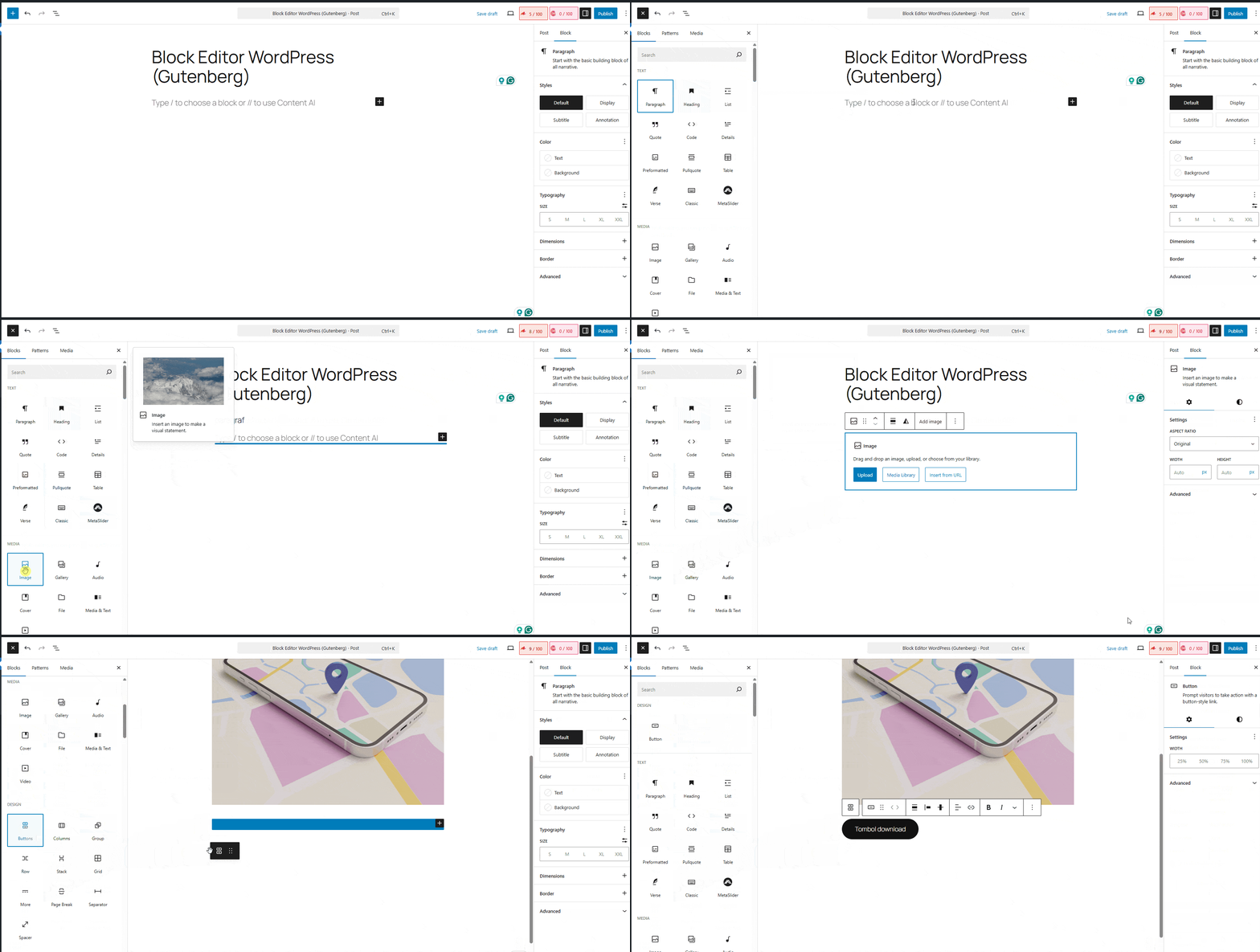
The drag-and-drop feature of the Block Editor provides a different user experience for WordPress users
The concepts of block-based editing and drag-and-drop are familiar to anyone involved in online business, which means most users can quickly learn how to use Gutenberg.
WordPress designed Gutenberg to be highly intuitive. Users can easily add, move, and delete blocks.
If you’re accustomed to the Classic Editor, it will only take a short time to adapt to the new editor.
b. Classic Editor
Although the Classic Editor has been replaced by Gutenberg, it doesn’t mean it’s difficult to use. With its relatively limited features, you can learn and start using this editor almost immediately.
Its layout is simple, allowing users to easily write content and add visual elements like images, galleries, or videos. However, for more advanced elements, you’ll need to rely on third-party plugins.
Advertisements
4. Limitations
Like any technology, both the Block Editor and the Classic Editor have their limitations. Here are the main drawbacks of each from a non-technical user’s perspective:
a. Block Editor
The main limitation for users new to the Block Editor is the adjustment period. Every element, whether it’s a paragraph, image, heading, or quote, is a separate block.
For example, to add a paragraph and an image, you have to perform several clicks: add a paragraph block, write your text, then add an image block, and finally select the image. For those who aren’t familiar with this workflow, it can feel time-consuming.
b. Classic Editor
The biggest limitation of the Classic Editor is its inability to create complex layouts. For instance, creating columns is not possible by default. All content is placed in a single vertical column.
If you want to add columns for paragraphs or place an image next to text, you must use custom CSS or a third-party plugin.
Customization options are also limited. The toolbar only provides basic settings like bold, italics, lists (bulleted/numbered), and text alignment.
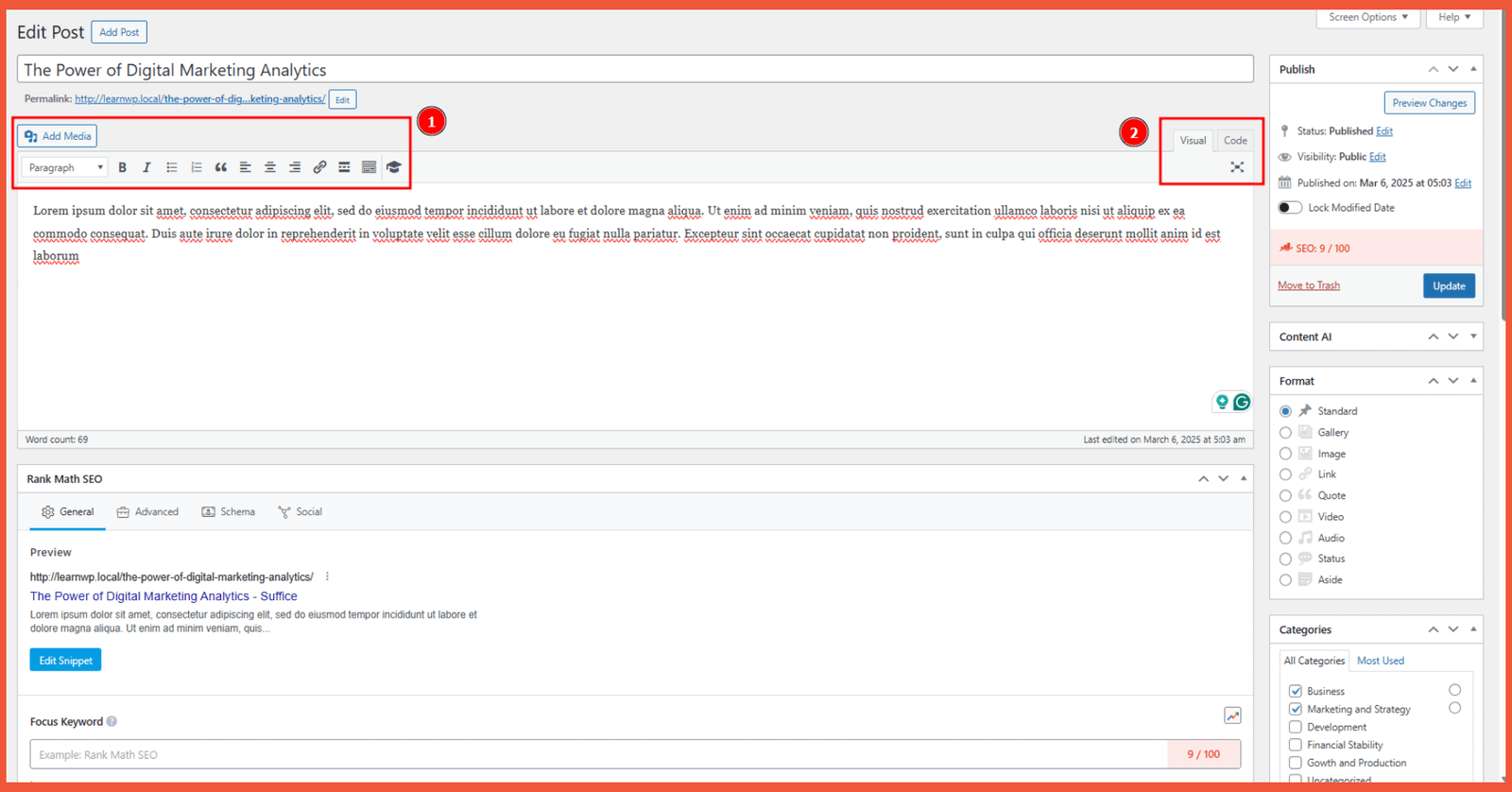
Classic Editor settings in WordPress. Advanced customization requires code or additional plugins.
Comparison Table: Block Editor vs. Classic Editor
Here is a side-by-side comparison of the Block Editor and the Classic Editor:
| Comparison Aspect | Block Editor (Gutenberg) | Classic Editor |
|---|---|---|
| Basic Concept | A block-based editor similar to a page builder. Every element (paragraph, image, heading) is a separate block. | A simple text editor similar to word processors (like Microsoft Word or Google Docs). |
| User Interface | A more modern interface with a drag-and-drop system. Settings for each block and the document are located in the right sidebar. | A simple interface with a formatting toolbar at the top of the writing area. |
| Ease of Use | Easy to learn for users familiar with the drag-and-drop concept. Requires some adaptation time for long-time Classic Editor users. | Very easy to learn because the features are limited and the layout is simple, suitable for writing immediately. |
| Performance | Initially complained about for causing lag, but over time performance has become smoother and it rarely crashes. | Due to its simplicity, this editor tends to be lightweight and stable. |
| Limitations | Requires getting used to. The workflow of adding separate blocks for each element can feel time-consuming for new users. | Cannot create complex layouts (e.g., columns) by default. Highly dependent on plugins for additional functionality. |
Use the Block Editor if: you want to create visually appealing pages or content, arrange layouts with columns, add call-to-action buttons, galleries, and other modern elements without needing to write code.
Use the Classic Editor if: you prefer a simple, fast writing experience focused on text, similar to a standard word processor, and don’t require complex layout customizations.
Block Editor vs. Classic Editor: The Final Verdict
That’s our comparison of the Block Editor and the Classic Editor. So, which one is better? The answer ultimately depends on your website’s needs.
Choosing an editor is just one of many technical decisions you’ll make when building a website. To ensure your site not only looks professional but is also fast, secure, and optimized for search engines, you need a reliable developer. Trust the experts at Tonjoo.
We are a professional custom website development service with hundreds of clients, including Gadjah Mada University, Polygon Bikes, and many others. We are ready to create a functional, sophisticated website tailored to your specific needs.

For more articles on WordPress, WooCommerce, and web development, check out Tonjoo Studio Blog by Moch. Nasikhun Amin.
Last Updated on January 29, 2026 by Moch. Nasikhun Amin

Advertisements