




Generally, creating a menu in WordPress can be split into two different methods. This depends entirely on the type of WordPress theme you are using. Both approaches are fully explained in this WordPress tutorial.
What kinds of menus can you have on a WordPress website? In reality, you can customize the types and number of menus based on your website’s specific needs, common examples include Home, Blog, About Us, and the like.
To build these menus, you don’t need to install any WordPress plugins, unlike when you are creating a table of contents in WordPress. The WordPress Gutenberg editor comes with these built-in features.
So, how do you add a menu in WordPress? What needs to be prepared before setting up menus and submenus on a WordPress-based website? Let’s dive into the complete guide below!
Tips for Creating a Menu in WordPress
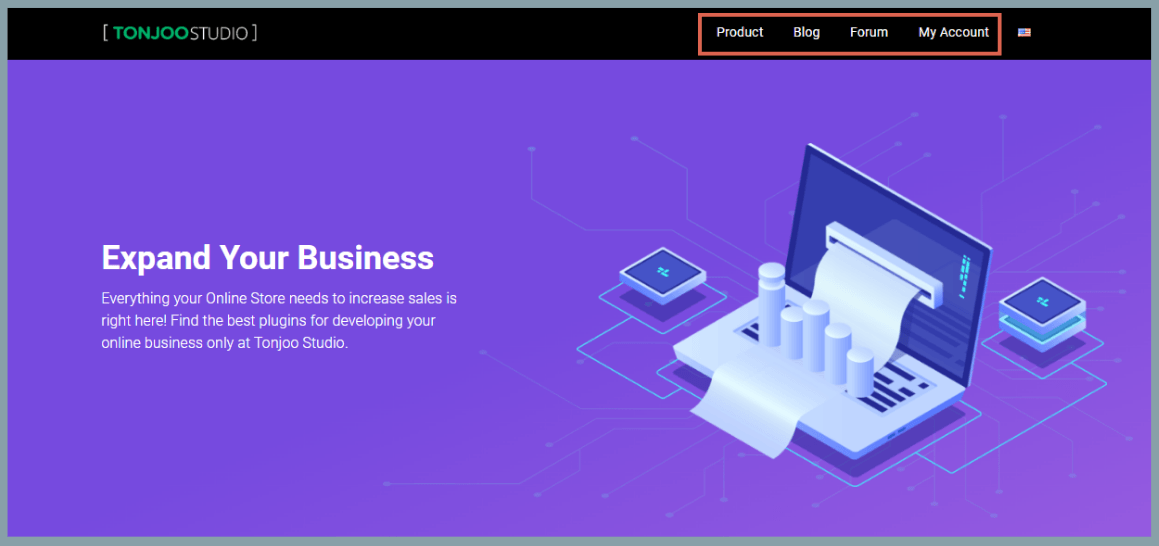
Before building menus and submenus on your WordPress site, here are a few essential tips to keep in mind. These pointers will greatly streamline the creation process.
a. Build Your Header First
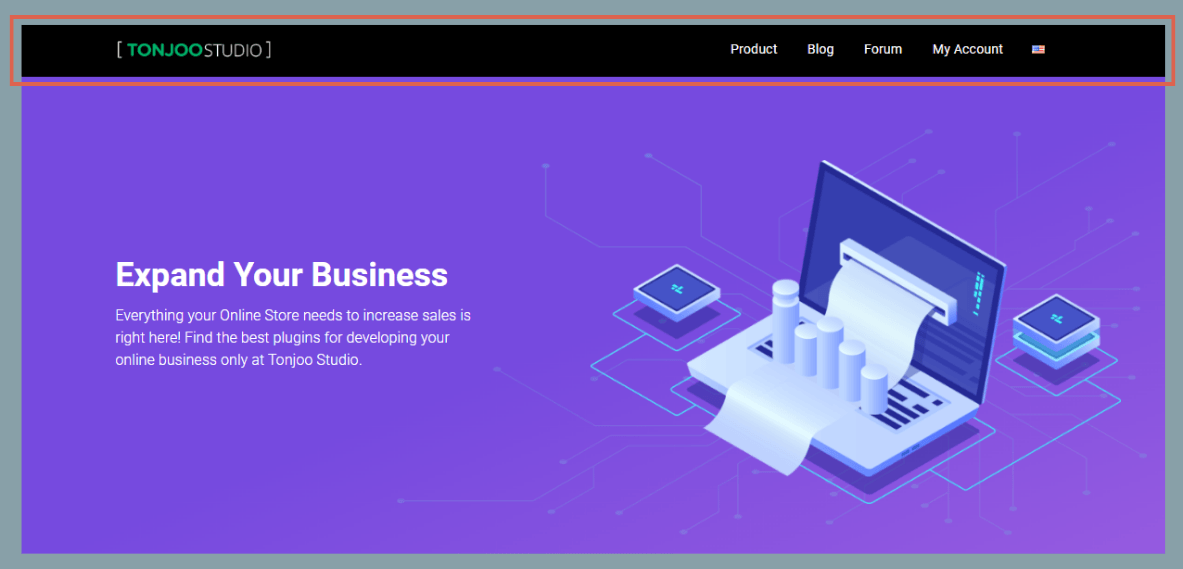
Creating a header in WordPress before setting up your menu will make things much easier for you. Since the menu on a WordPress site is positioned within the header, doing this first ensures the layout looks clean and organized, making configuration a breeze.
b. Prepare Your Pages in Advance
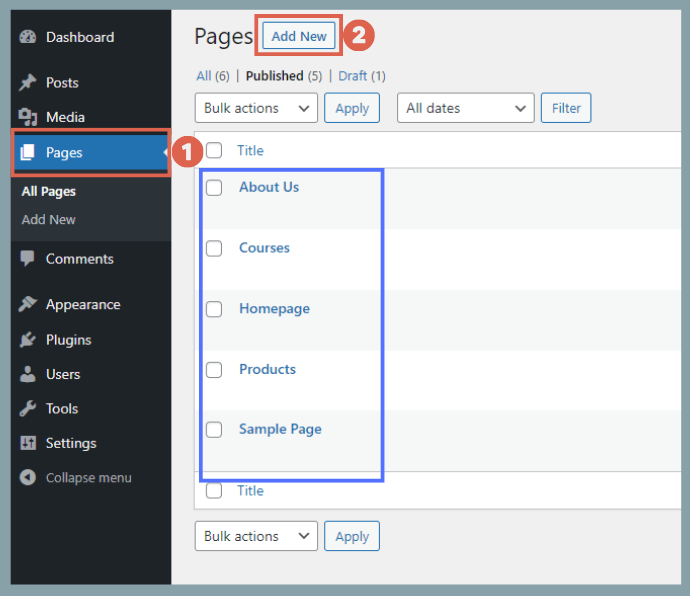
Next, it is highly recommended that you already have several pages created on your website. These pages are what you will display in the menu. After all, if there are no pages yet, you won’t have anything to add to the menu.
To create a new page, go to your WP Admin, click Pages > Add New.
c. Limit the Number of Menu Items
When structuring a website menu, make sure not to clutter it with too many options. An excessive number of choices can overwhelm your visitors. A good rule of thumb is to keep your main menu between 4 to 10 items.
If you have a large number of pages that need to be accessible, consider these alternatives:
- Drop them into a submenu (dropdown).
- Place navigation links in the footer.
d. Design for Mobile Responsiveness
When setting up a website menu, you must factor in its responsiveness. This means configuring how the menu shifts and displays across different screen sizes, including desktops, tablets, and smartphones.
Since the menu sits right inside the header, learning how to build responsive headers and footers is a great next step.
e. Understand the WordPress Theme You Are Using
Also Read
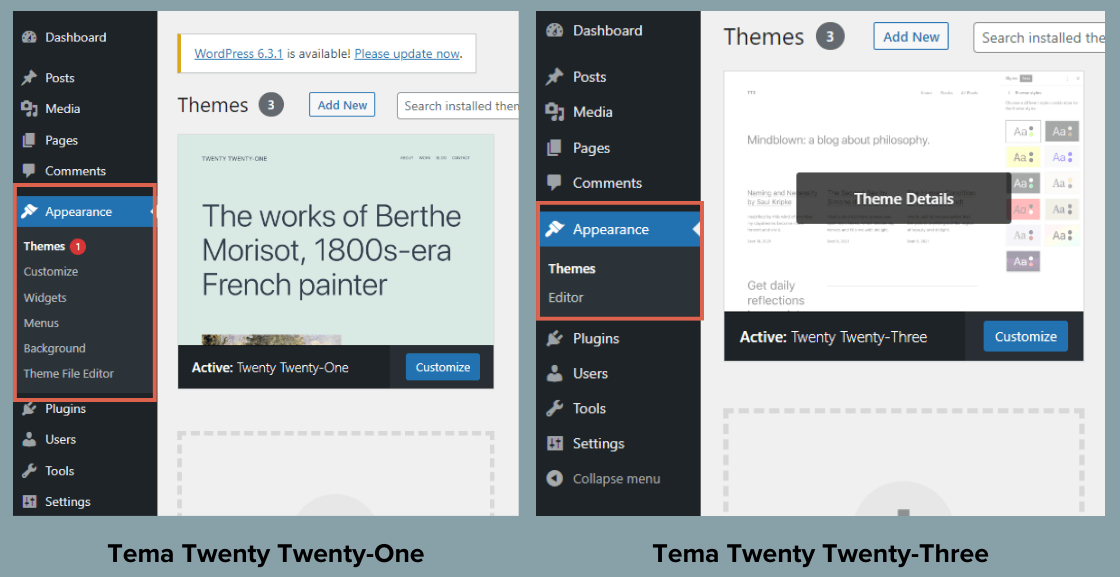
Classic WordPress themes and the latest block themes use completely different methods for generating menus. Classic themes refer to themes like Twenty Twenty-Two and older.
Conversely, the latest generation of WordPress themes includes Twenty Twenty-Three and beyond. If you are using a third-party theme, look closely at the layout options under the Appearance menu to determine which generation’s method applies to your site.
How to Create a Menu in WordPress
Note: Website menus can only be populated if you have already published pages on your site. If you haven’t done so, please add pages first by navigating to Pages > Add New.
We have divided the menu-building process into two parts: the first section covers classic themes, while the second covers the latest block themes.
Method A: Creating a Menu in Classic Themes (Twenty Twenty-Two and Below)
If you are developing a website using default WordPress themes from the Twenty Twenty-Two era or older (such as Twenty Twenty-One or Twenty Twenty), follow these steps:
- Ensure you have already built your header and published your pages.
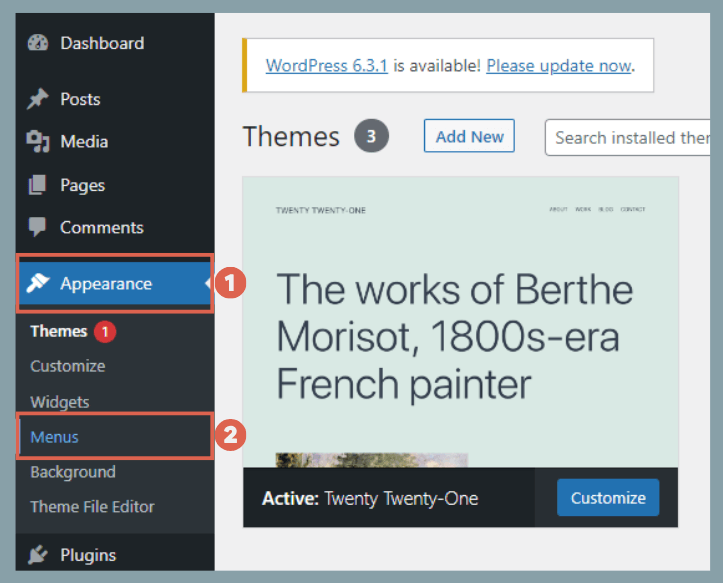
- Go to Appearance > Menus in your WordPress dashboard.

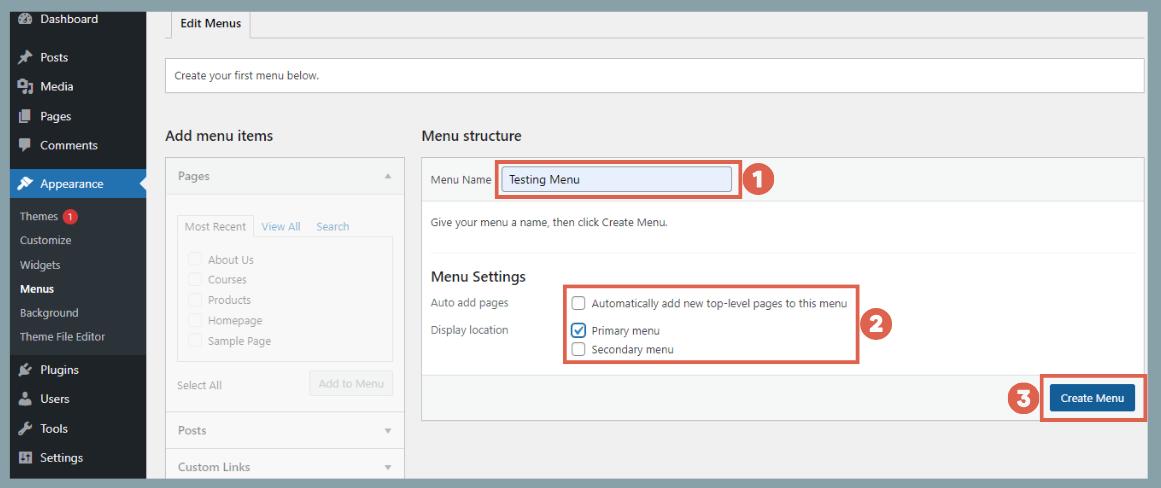
- Type a name in the Menu Name field. This name is for internal tracking and won’t show up on the front-end of your site. Under Menu Settings, check the Primary menu box to assign this menu to your header. Click Create Menu.

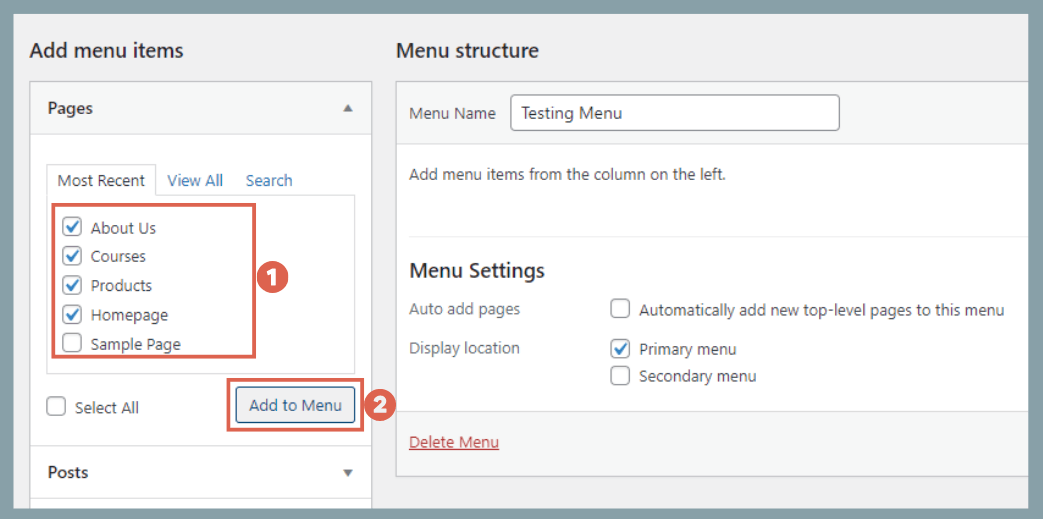
- In the left-hand panel, check the boxes next to the pages you want to include, then click Add to Menu.

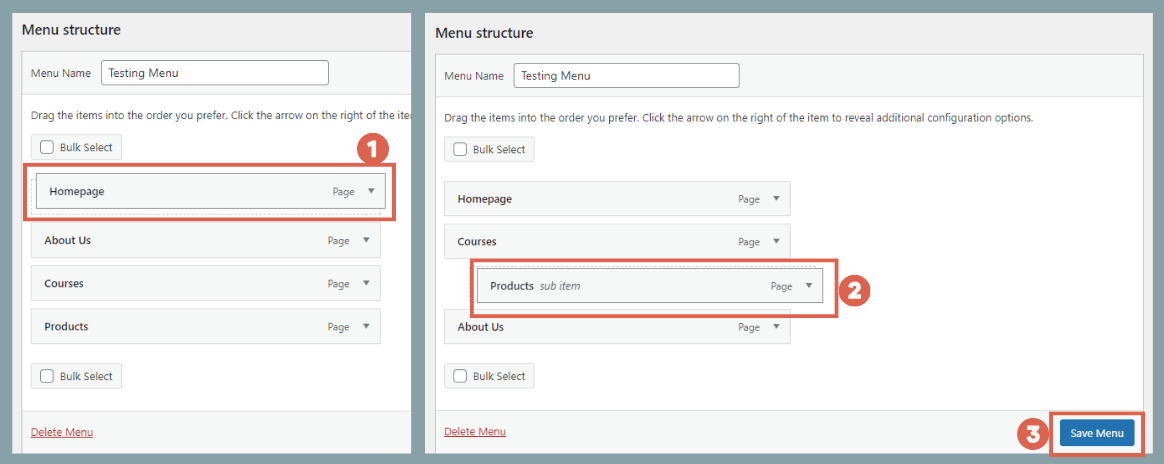
- Under Menu structure, you can easily reorder items using drag-and-drop. To create a Submenu, simply drag an item slightly to the right underneath a parent item. Once finalized, click Save Menu.

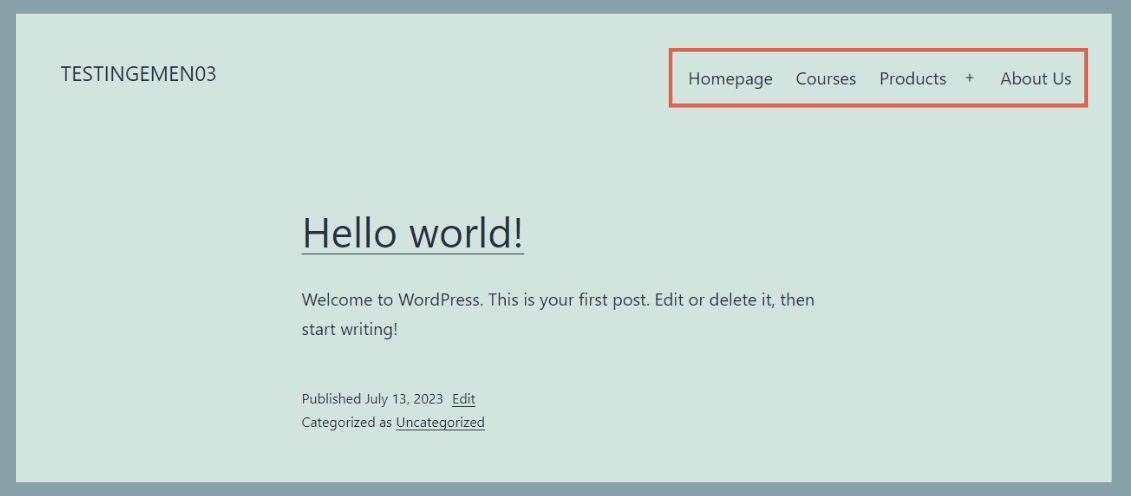
- You’re all set! You can now view your structured navigation live on the front-end of your website.

Method B: Creating a Menu in Modern Block Themes (Twenty Twenty-Three and Above)
To add new navigation elements using the latest Full Site Editing (FSE) block themes, follow these steps:
- Ensure your pages are published (and ideally, your header template part is ready).
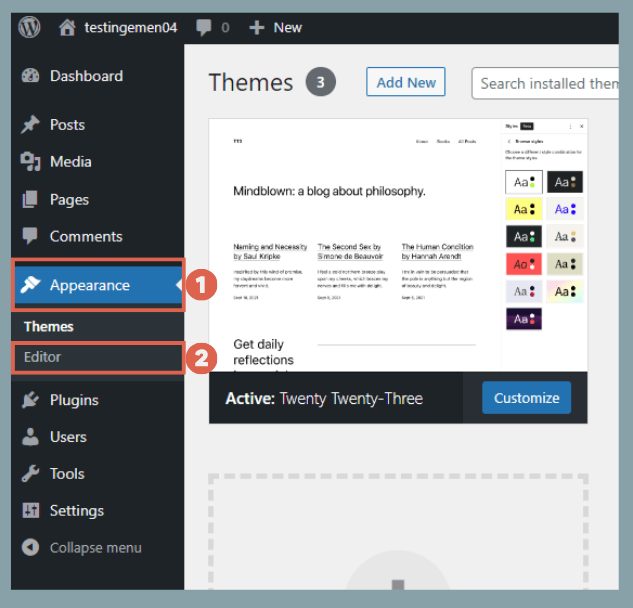
- Navigate to Appearance > Editor.

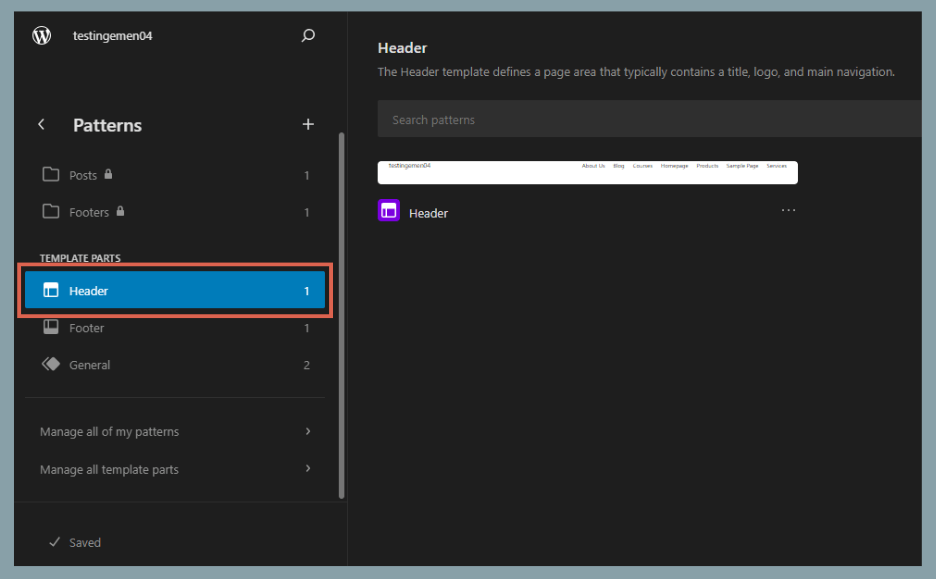
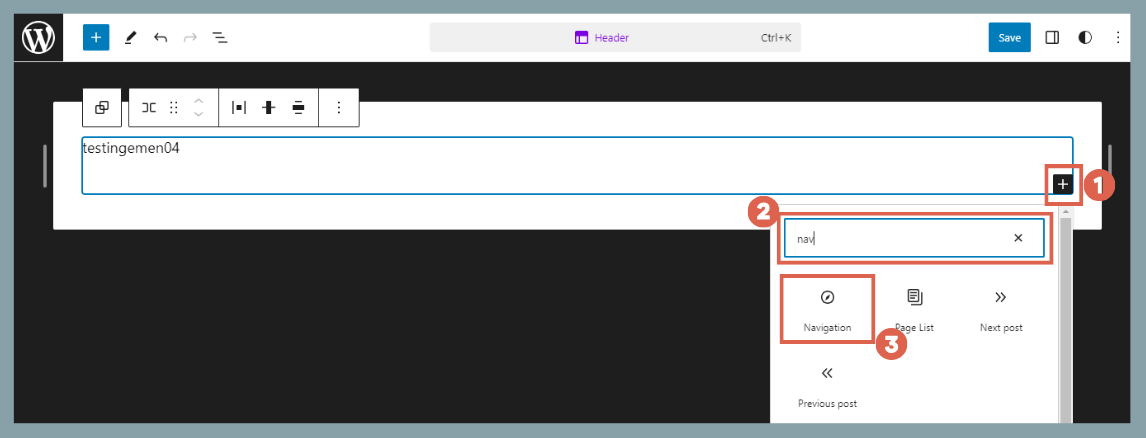
- In the Design panel, select Patterns, then click on Header.

- To add your navigation block, click the [+] inserter icon, type nav into the search box, and select the Navigation block.

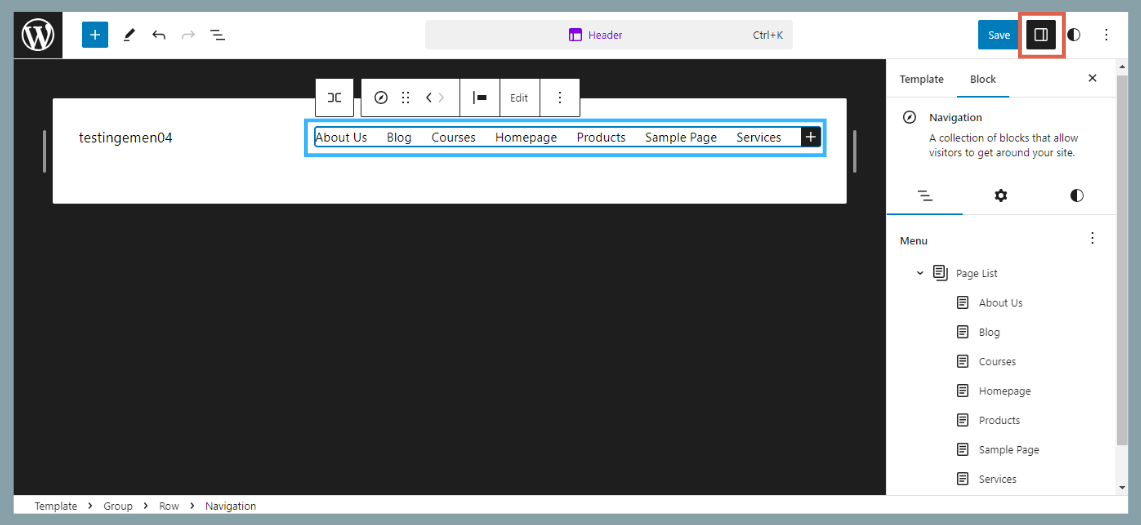
- The block will automatically pull in your existing pages. To tweak this structure, open the Settings sidebar panel in the top-right corner.

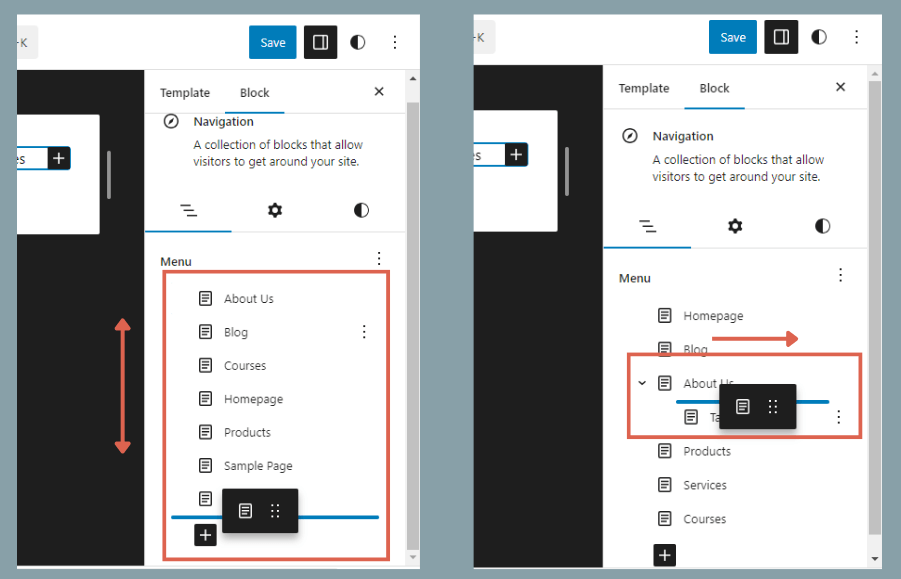
- You can reorder items inside this panel using drag-and-drop. To convert an item into a submenu, drag it slightly to the right.

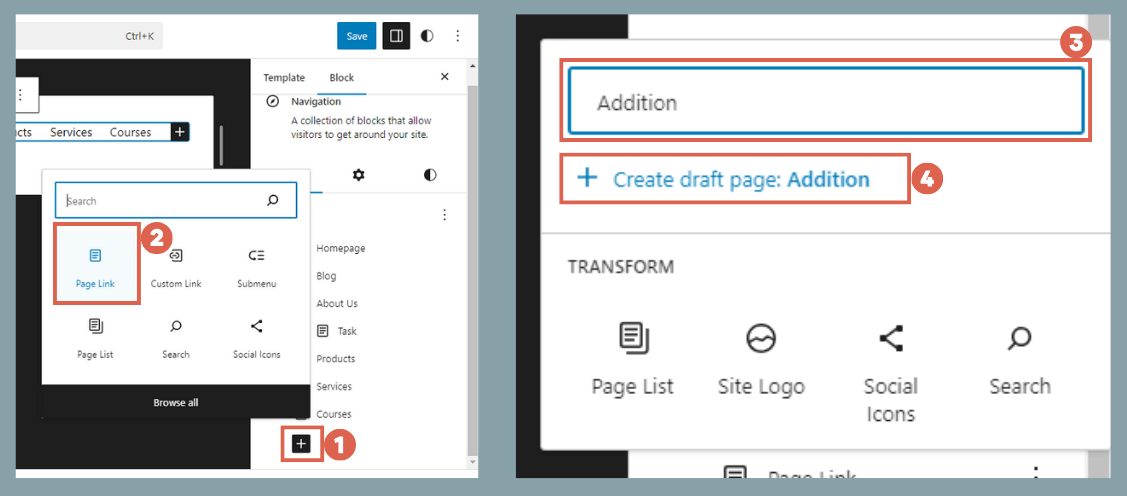
- You can also add custom links by clicking the [+] icon at the bottom of the navigation list, choosing the Page Link block, naming the item, and clicking + Create draft page.

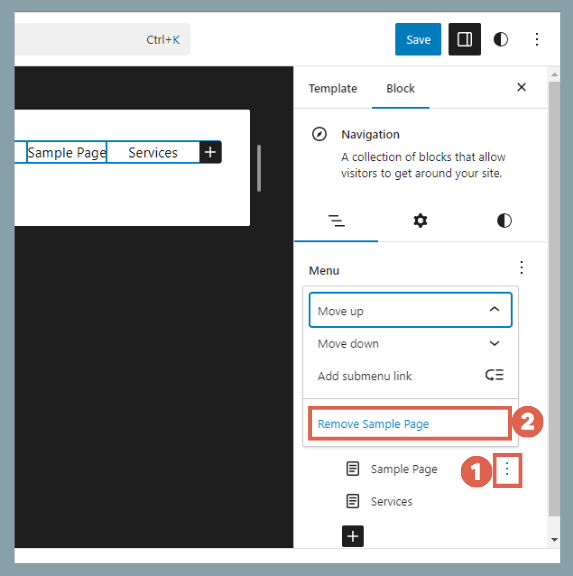
- To delete a menu item, click the three vertical dots next to it and select Remove.

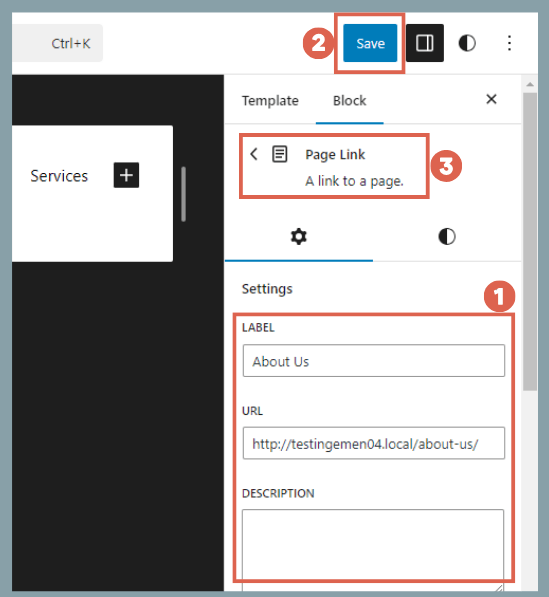
- To edit labels or change URLs, click on the specific menu item to adjust its text and link settings. Click Save when done, then select Page Link to head back.

- Once your adjustments are complete, save your overall template modifications and review the live changes on your homepage.
Successfully Created Your WordPress Menu?
That wraps up our guide on how to build menus in WordPress using both classic and modern block theme frameworks.
Since your main menu sits prominently in the header area, you might also want to look into creating a sticky header in WordPress to give your users an even smoother browsing experience as they scroll.
If you run into any road blocks, have technical questions, or require dedicated WordPress development support, feel free to reach out to us via Tonjoo Contact, our team is always here to help you solve your website challenges!

For more articles on WordPress, WooCommerce, and web development, check out Tonjoo Studio Blog by Moch. Nasikhun Amin.
Last Updated on June 1, 2026 by Moch. Nasikhun Amin
