




Adding animated GIFs to WordPress is quite simple. The steps are very similar to adding a regular image, regardless of whether you’re using the Classic Editor or the Gutenberg Block Editor.
In short, a GIF is a silent, moving image. When creating an article, GIFs are particularly useful for demonstrating tutorials, giving readers a clearer picture of the steps involved.
Along with features like a table of contents in WordPress, embedding GIFs can increase the time users spend on your page. This can help your SEO efforts by lowering your bounce rate.
So, how do you add a GIF to a WordPress article? And what should you do if you’ve inserted an animated GIF, but it isn’t playing? Let’s dive into the full guide!
How to Add GIFs in WordPress Easily
Depending on the editor you use, there are two primary methods for adding a GIF to WordPress: one for the (1) Classic Editor and another for the (2) Gutenberg Block Editor.
You can add GIFs to WordPress whether you’ve installed WordPress on a localhost or are working on a live site with a hosting plan. Let’s get started with the tutorials!
a. Adding a GIF Image with the WordPress Classic Editor
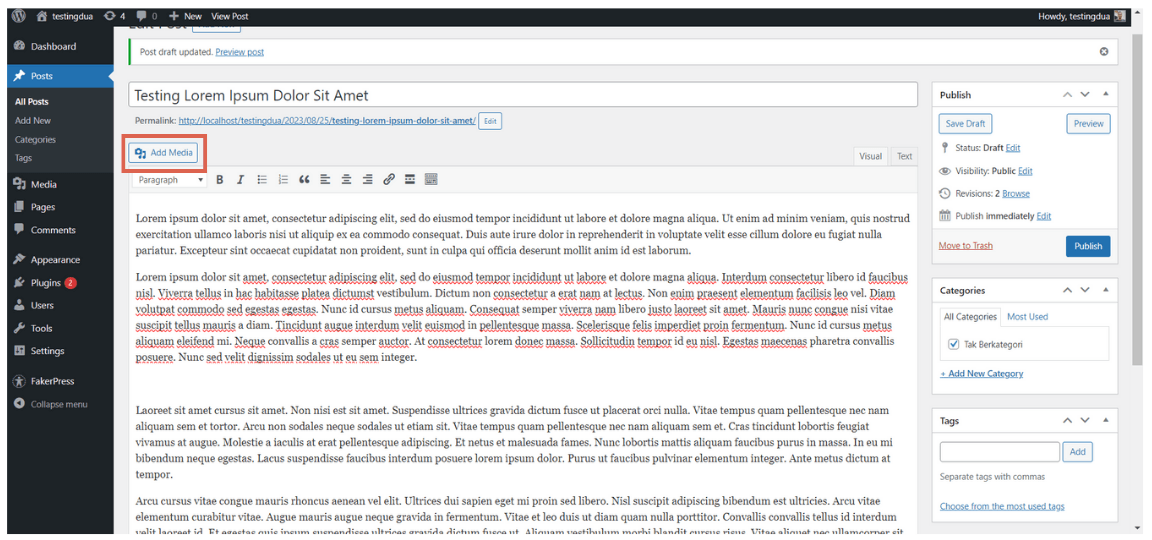
To add an animated GIF in the WordPress Classic Editor, the steps are the same as adding a standard image using the Add Media feature.
- Open the post or page where you want to add the GIF and click Add Media.

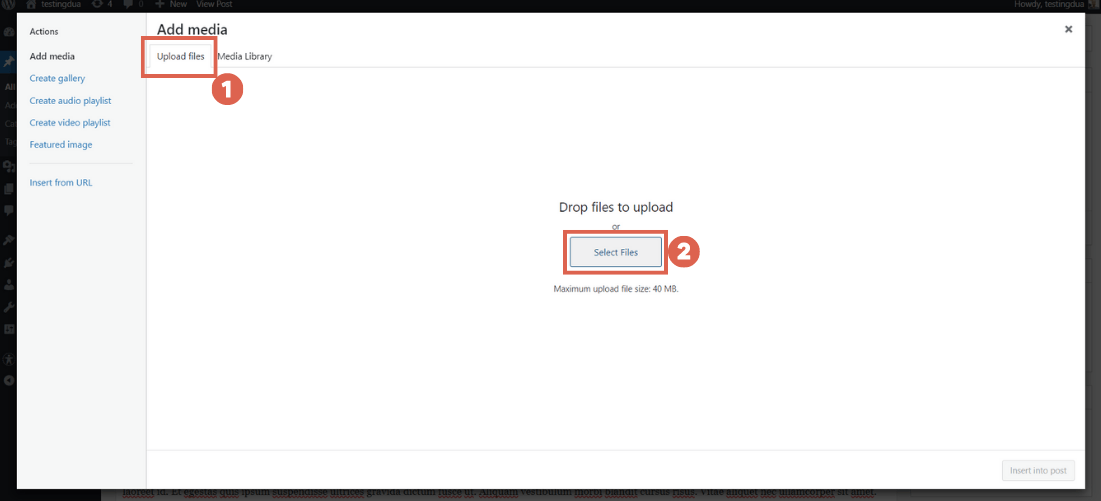
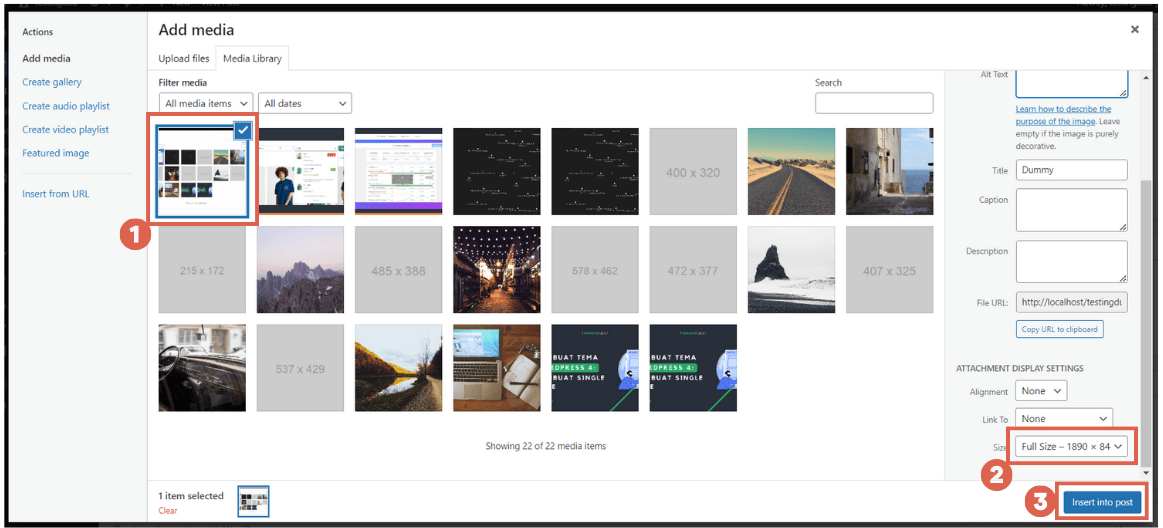
- In the Add Media window, click Upload files > Select Files to choose your GIF.

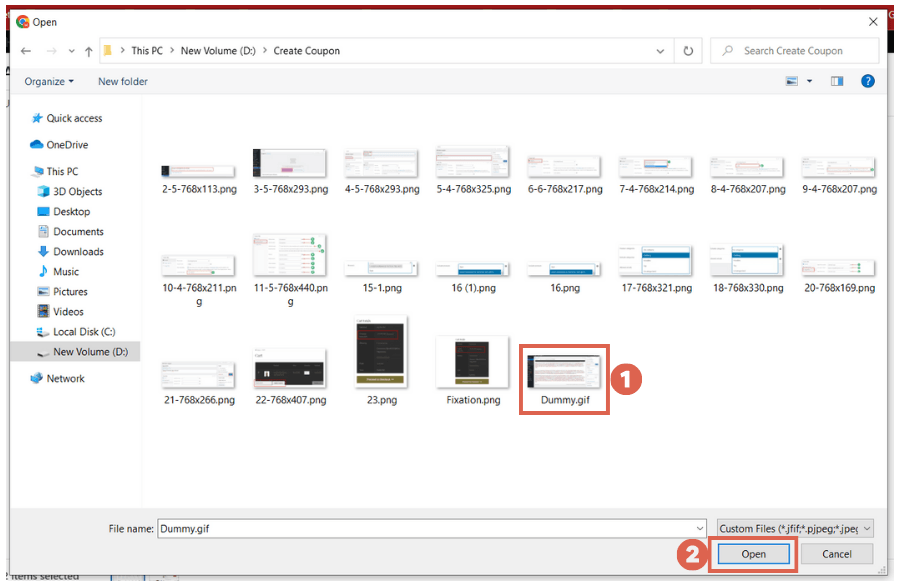
- Select the GIF you want to add to your website or article and click Open.

- Fill in the image attributes like Alt Text, Title, and Caption. In the Size section, make sure to select Full Size. This step is crucial to ensure the GIF animates correctly. Once done, click Insert into post.

- That’s it! The GIF image is now embedded in your article.

- Before publishing, you can check how it looks by clicking Preview.
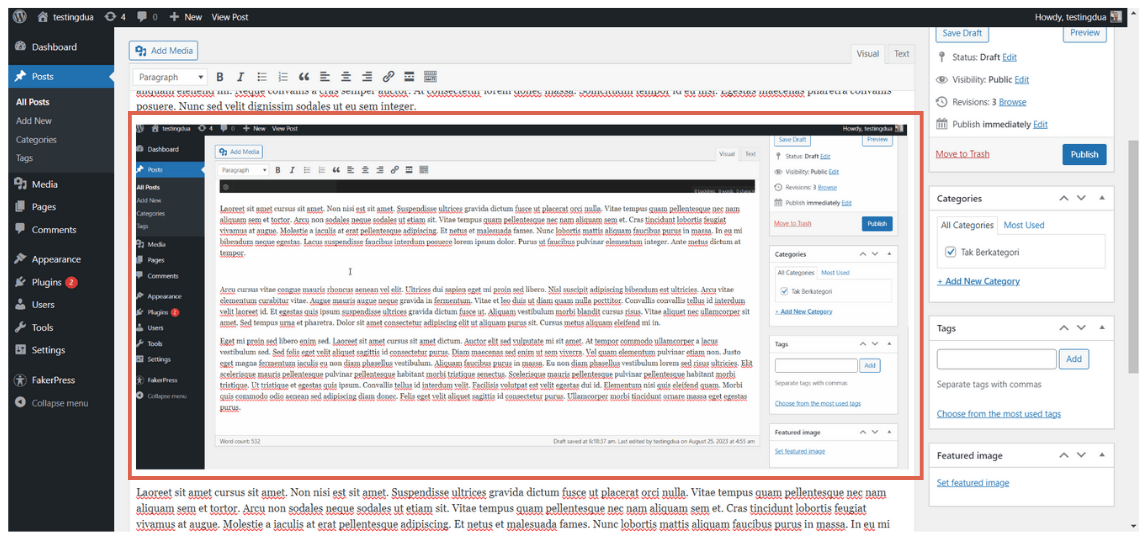
The method above is for those using the Classic Editor. If you’re a Gutenberg user, follow the next section.
b. Adding an Animated GIF with the WordPress Block Editor (Gutenberg)
One of the reasons many people use the Gutenberg block editor is the ease with which you can manage website functions and appearance, even creating a homepage with Gutenberg.
If you’re a Gutenberg user, follow these steps to add a GIF:
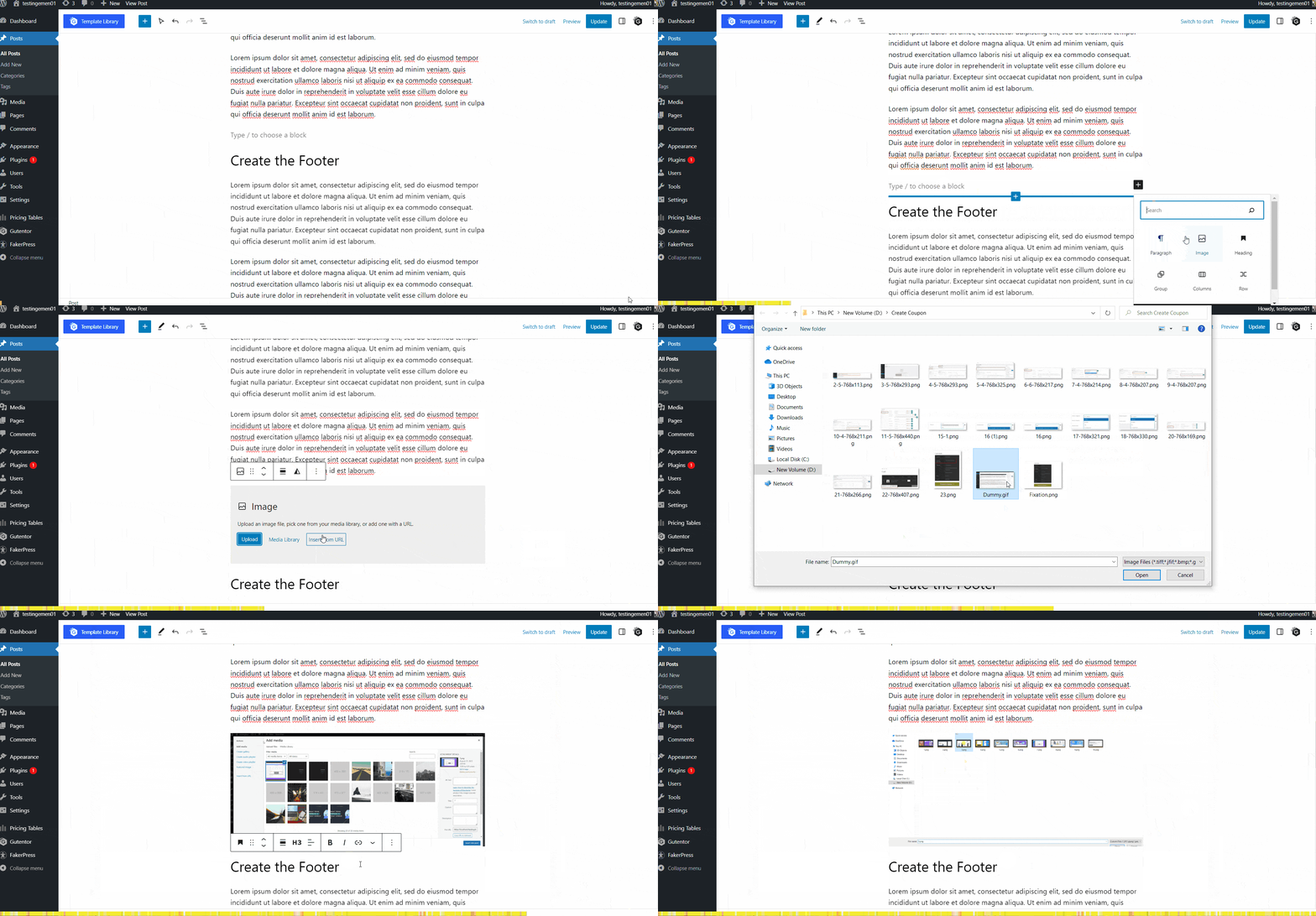
- Open an article, click the [+] icon where you want to add the GIF, type image into the search box, and select the Image block.
- Next, click Upload, select the desired GIF image, and click Open.
- To see the result, click Preview.
- Done! You have successfully inserted a GIF into your WordPress article.
Also Read:
However, in some cases, an animated GIF that has been added to an article may not play as expected. This is a common issue. So, how do you fix it?
How to Fix Animated GIFs That Don’t Work in WordPress
If your animated GIF isn’t playing, a common issue—especially for users of the WordPress Classic Editor—is that WordPress resizes it, which can turn it into a static image.
The solution to a non-playing GIF in WordPress is to use its original image size. You can do this by selecting the Full Size option when you upload or edit the image. Here are the steps:
- Open the GIF you uploaded via Add Media. Click on the image in your editor.
- Look at the Attachment Details pane on the right and scroll to the bottom.
- Click on the Size dropdown and select the Full Size option.
- That’s it! You’ve successfully fixed the non-animating GIF.
If the method above doesn’t work, the problem might be caused by an image optimization plugin you are using. If this is the case, you can try temporarily deactivating the plugin to see if it resolves the issue.
Have You Successfully Added Your Animated GIF in WordPress?
This guide has shown you two ways to add animated GIFs to WordPress, based on whether you use the Classic Editor or the Gutenberg editor.
By using GIFs, your articles have the potential to be more engaging for readers. Furthermore, GIFs can serve as a more effective and lightweight media alternative.
To better organize your content before publishing, you can also try writing your WordPress articles by taking notes in Obsidian first.
If you have any further questions about WordPress or related topics, feel free to contact Tonjoo‘s support or leave a message in the comments section below!

For more articles on WordPress, WooCommerce, and web development, check out Tonjoo Studio Blog by Moch. Nasikhun Amin.
Last Updated on February 22, 2026 by Moch. Nasikhun Amin
