




Adding payment methods in WooCommerce for your WordPress site is quite straightforward, whether you’re setting up bank transfers or a Cash on Delivery (COD) system.
These payment options will be available for customers when they check out from your online store, offering them more convenience.
However, before you can activate payment methods in WooCommerce, you must first configure your Shipping Zones. You can do this by navigating to WooCommerce > Settings and clicking on the Shipping tab.
Once your Shipping Zones are configured, you can proceed with enabling payment methods.
How to Add Payment Methods in WooCommerce
WooCommerce offers four primary payment methods by default: 1.) Direct bank transfer, 2.) Cash on delivery (COD), 3.) Check payments, and 4.) PayPal.
This tutorial will focus on the first two options: bank transfers and COD. Follow these steps to set up your payment methods in WooCommerce:
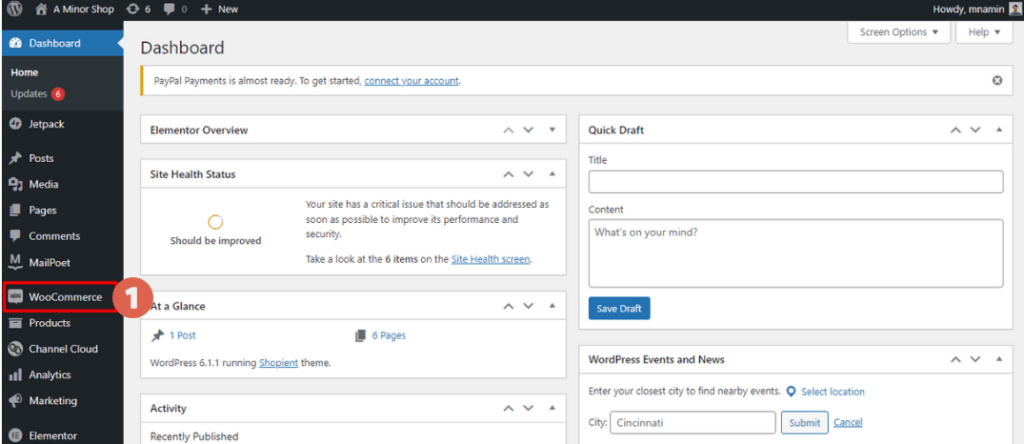
- Log in to your WordPress dashboard as an Administrator.
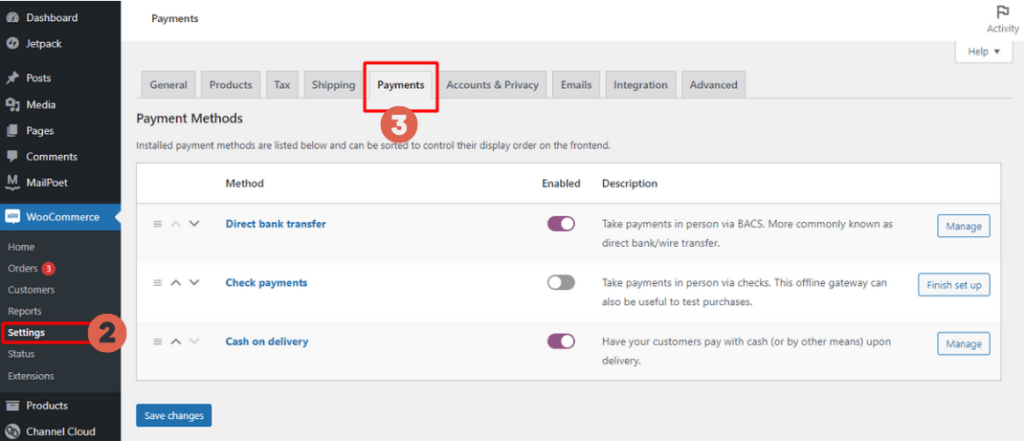
- Navigate to the WooCommerce menu.

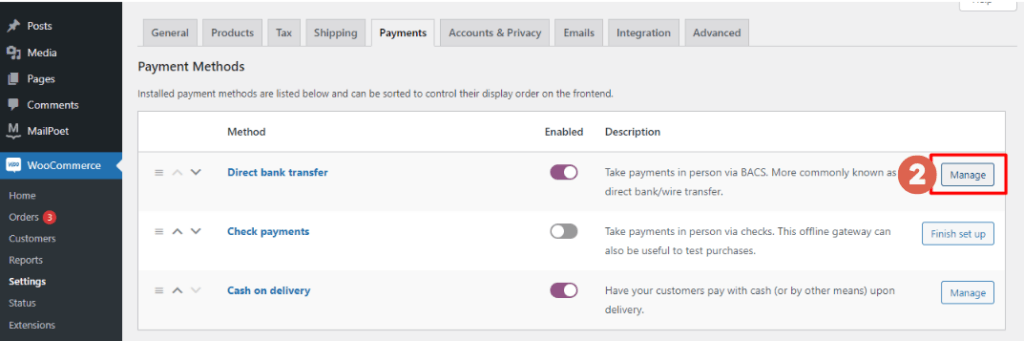
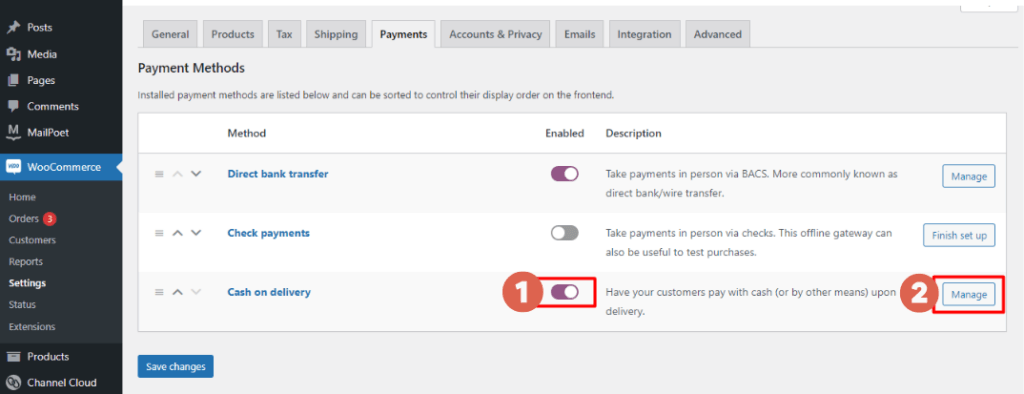
- Select Settings and then go to the Payments tab.

- Next, choose the payment method you wish to enable: – Direct bank transfer
– Cash on delivery (COD)
– Check payments
To configure each payment method, please follow the next set of instructions.
A. How to Set Up Bank Transfers in WooCommerce
If you want to enable bank transfers, make sure you have your bank account number ready.
Also Read:
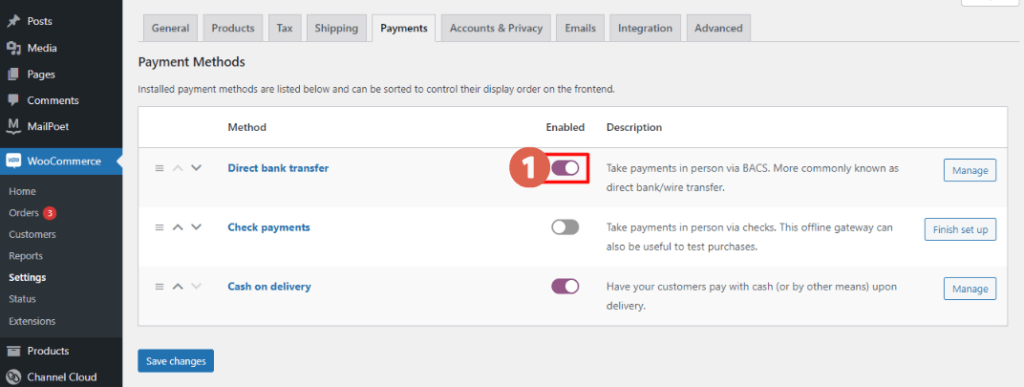
- Ensure the toggle switch for the Direct bank transfer payment method is enabled.

- Click Manage.

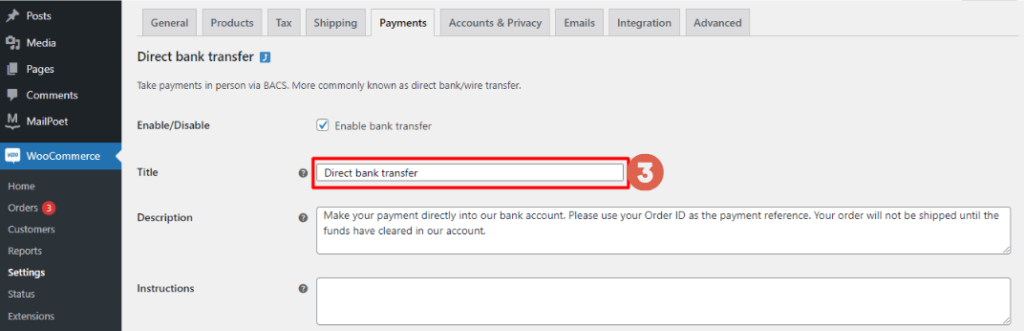
- Adjust the Title as needed. For example, you might change it to Direct Bank Transfer.

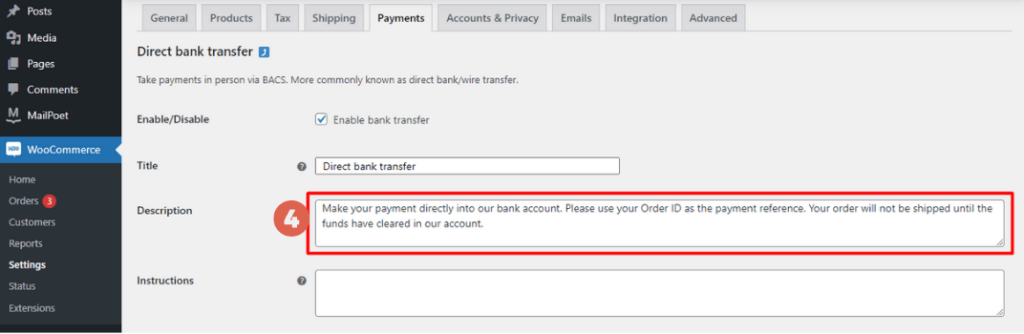
- Write a Description.
 Description Example:
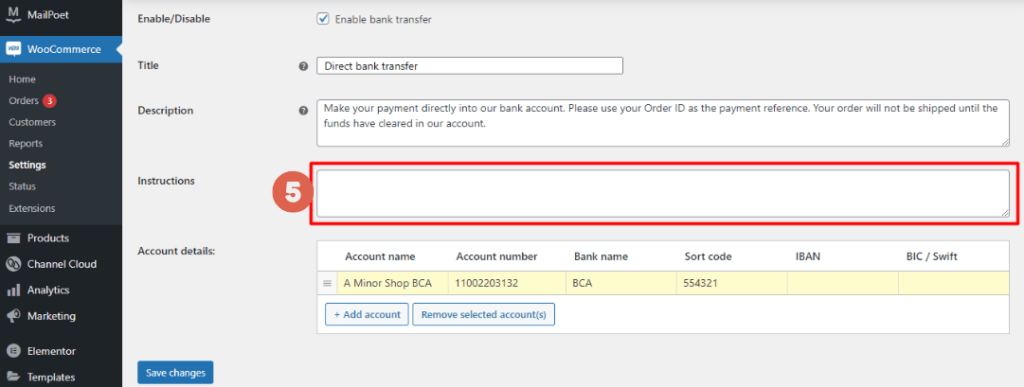
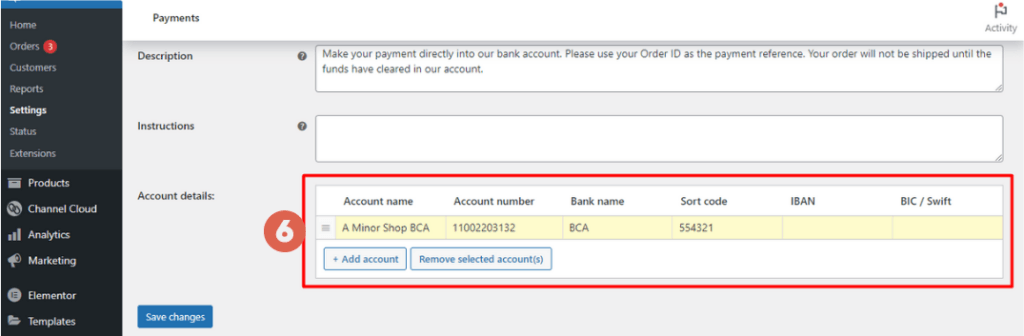
Make your payment directly into our bank account. Please use your Order ID as the payment reference. Your order will not be shipped until the funds have cleared in our account. Be sure to confirm your payment after the transfer. - Fill in the Instructions section. This feature helps your customers understand the payment process. You can outline the payment steps here.Example Instructions:
a. After checkout, please note your Order ID.
b. Go to the nearest bank/ATM or send funds via mobile banking.
c. When making the payment, do not forget to include the Order ID.
d. After payment, please confirm your transaction. - In the Account details section, enter the information for the bank account you will be using.
 – Account name
– Account number
– Bank name
– Sort code
– IBAN (International Bank Account Number)
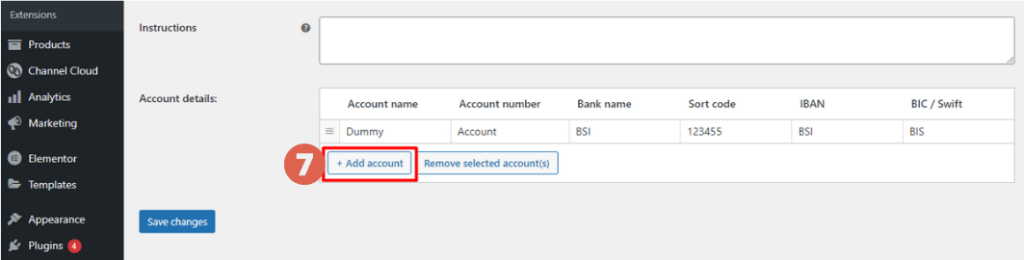
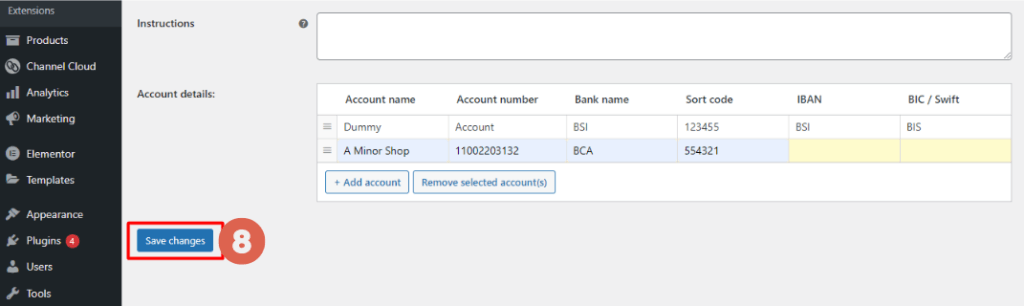
– BIC/Swift (Business Identifier Code)If you use more than one bank account, you can add another by clicking Add account.

- Finally, click Save changes once you have finished adding your account information.

B. How to Add COD Payments in WooCommerce
In addition to bank transfers, you can also enable a COD payment system. Here’s how to add COD payments in WooCommerce:
- Ensure the toggle for the Cash on delivery payment method is enabled. Then, click Manage.

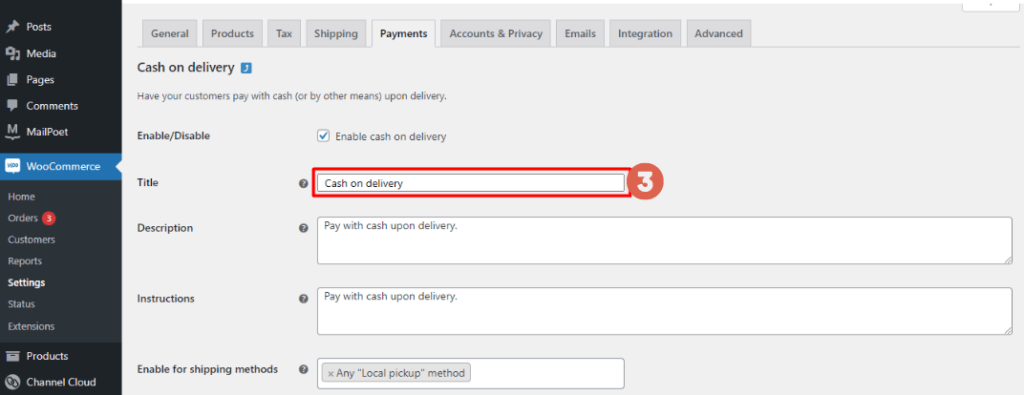
- In the Title field, name the service. For example, COD or Cash on Delivery.

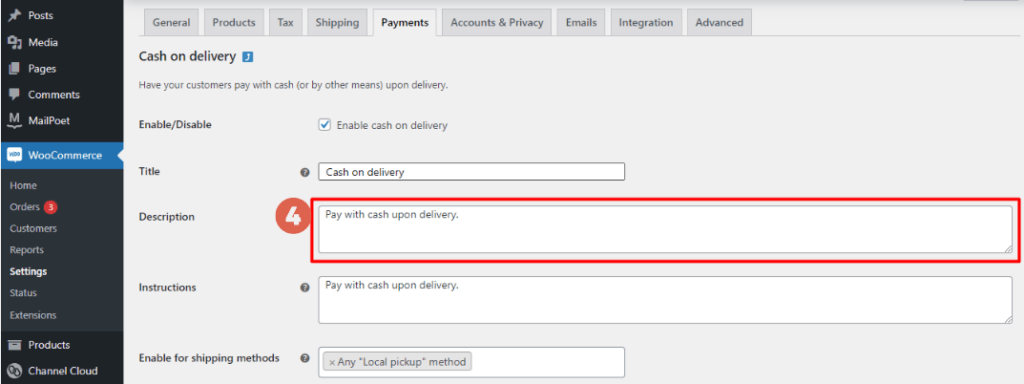
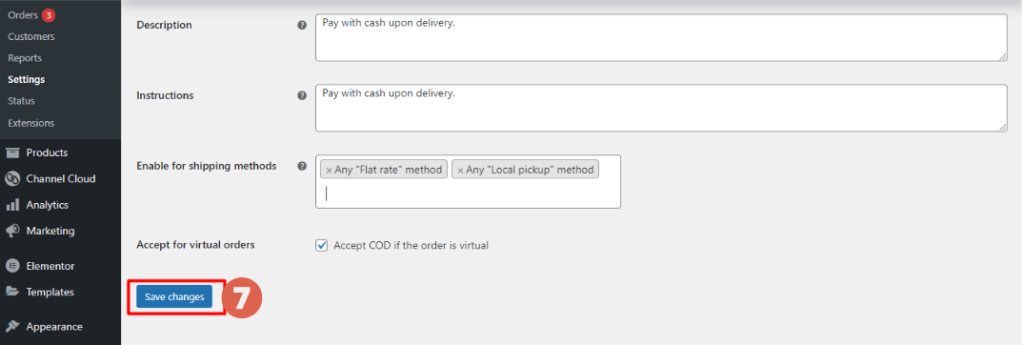
- In the Description field, you can add any necessary details.

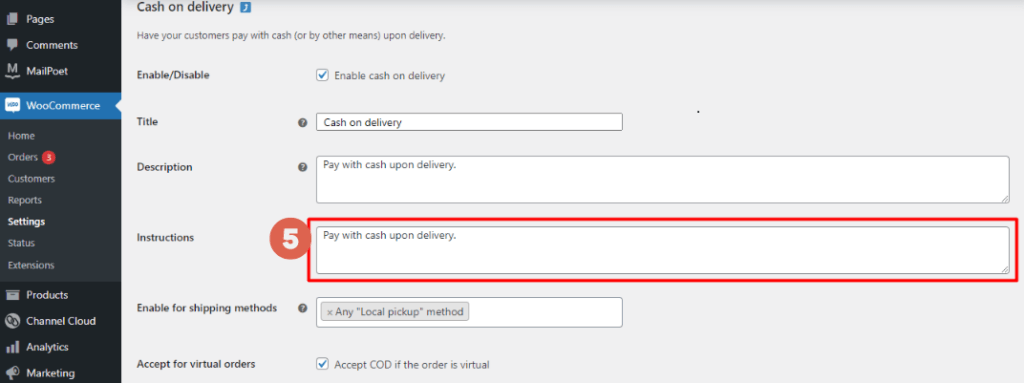
- In the Instructions field, enter instructions that make the payment method clear to your customers.

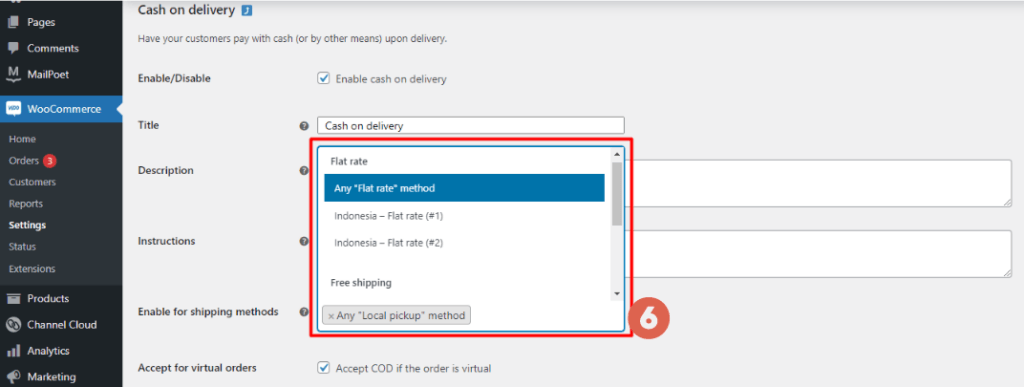
- Under Enable for shipping methods, choose which shipping methods will have the COD option available.
- Once you are done, click Save changes.

That concludes our tutorial on setting up COD and bank transfer payments in WooCommerce for your online store. Remember, you can only configure payment options after you have set up your Shipping Zones.
If managing an e-commerce website on your own feels a bit overwhelming, you can use the services of a professional website developer in Indonesia, like Tonjoo Studio. Please feel free to contact us at contact@tonjoo.com for a free consultation.

For more articles on WordPress, WooCommerce, and web development, check out Tonjoo Studio Blog by Moch. Nasikhun Amin.
Last Updated on February 21, 2026 by Moch. Nasikhun Amin
