




How to delete or uninstall a WordPress plugin? Plugins are one of the best features of WordPress. They allow you to enhance your website’s functionality and add new features with ease. However, there are times when you need to remove a plugin, whether it’s no longer in use, causing problems, or you’ve found a better alternative.
Deleting unnecessary plugins is the best way to maintain your website’s performance. This article will guide you on how to properly delete WordPress plugins, so be sure to read it all the way through.
Why You Should Delete WordPress Plugins
There are several reasons why website owners like you should remove unnecessary WordPress plugins. Here are the main ones:
1. Improve Website Performance
Having too many plugins can slow down your WordPress website. They can lead to heavy page loads and put a strain on your server. Therefore, it’s crucial to remove any WordPress plugins you don’t need.
2. Security
Unused and outdated plugins are potential security vulnerabilities. These weak spots can be exploited by malicious actors to inject malware, steal personal data, and cause other harm to your site.
3. Storage Space Efficiency
Too many plugins can consume a significant amount of your hosting storage. By deleting them, you can free up valuable hosting space, which is especially important on shared hosting plans with limited capacity.
4. Avoiding Conflicts
Plugins that are incompatible with each other or with your version of WordPress can cause fatal errors. Common issues include the “white screen of death” or an HTTP 500 error. Check out our article on how to fix the HTTP 500 Error to resolve it.
Deactivating vs. Deleting a Plugin: What’s the Difference?
Many people assume that simply deactivating a plugin is enough when it’s no longer needed. However, it’s always better to completely delete unused plugins, as they can become security risks if left installed. It’s important to understand the difference:
- Deactivating: Deactivating a plugin is like flipping a light switch off. The plugin stops running, but all its files and settings remain on your server. You can reactivate it at any time.
- Deleting: This action permanently removes all plugin files from your website’s server. It will also delete any associated settings from your database.
Preparation Before Deleting a WordPress Plugin
Before deleting a plugin, or making any significant changes to your website, it’s crucial to perform a full backup. This allows you to restore your site to its previous state if anything goes wrong.
You can use a backup plugin like UpdraftPlus or All-in-One WP Migration, or use the backup feature provided by your hosting provider. Learn the best hosting for your ecommerce site.
How to Delete or Uninstall a WordPress Plugin
There are two common methods for deleting a WordPress plugin: through the WordPress dashboard and via your file manager on localhost or a live server.
Also Read:
Method 1: Deleting a Plugin via the WordPress Dashboard
Here’s how to delete a plugin directly from your WordPress dashboard:
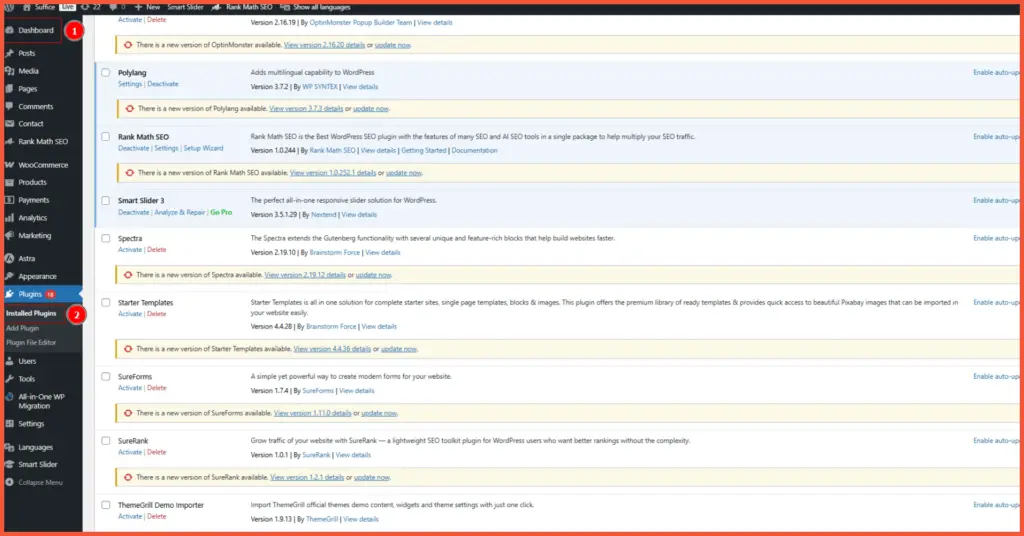
- Log in to your WordPress dashboard.
- Navigate to Plugins > Installed Plugins.

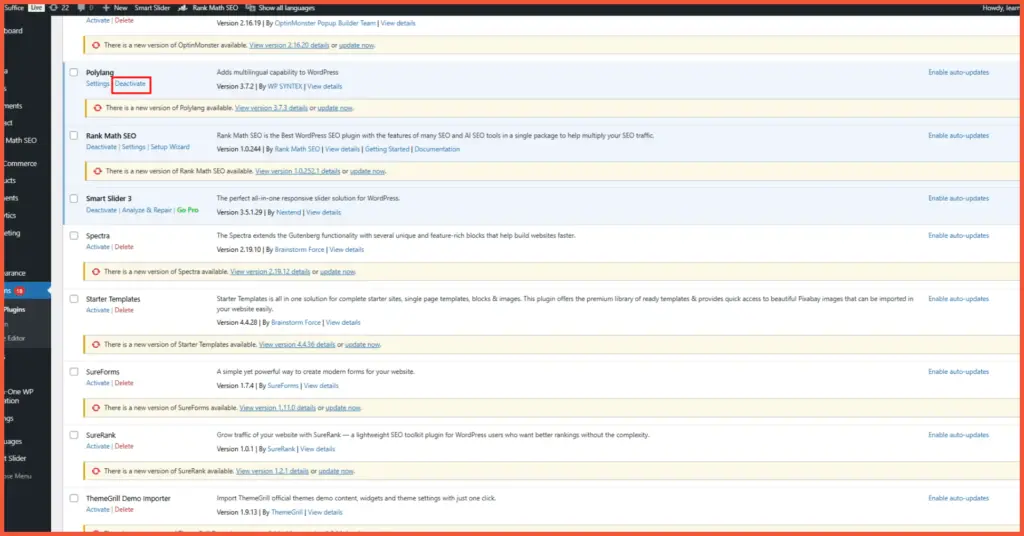
- You will see a list of all plugins installed on your site. Find the plugin you want to delete. In this example, we’ll be deleting the Polylang plugin.
- First, you must deactivate the plugin. You cannot delete an active plugin. Click the Deactivate link under the plugin’s name.
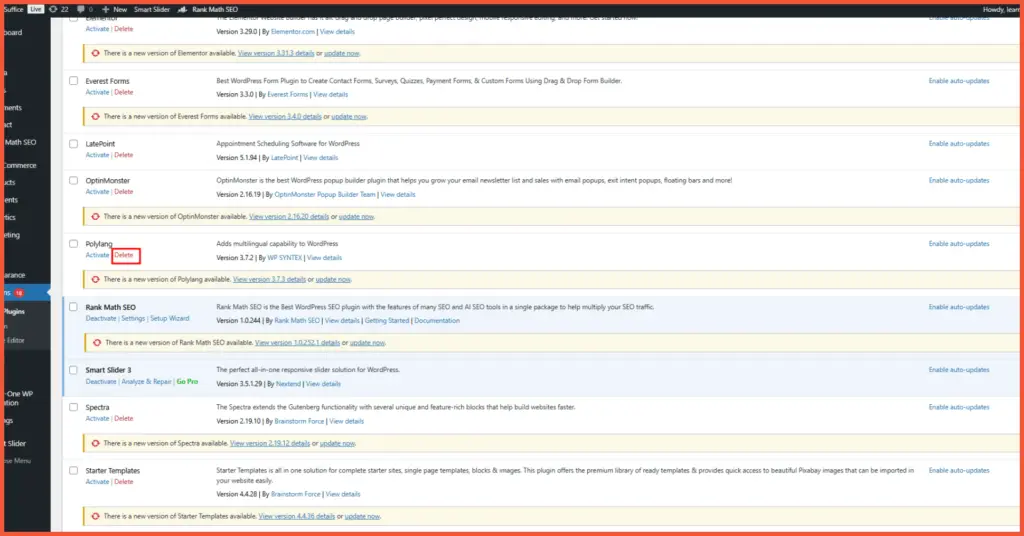
- Once the plugin is deactivated, a Delete link will appear. Click it.
- WordPress will ask for final confirmation to ensure you really want to delete the plugin and its data. Click “OK” to proceed.
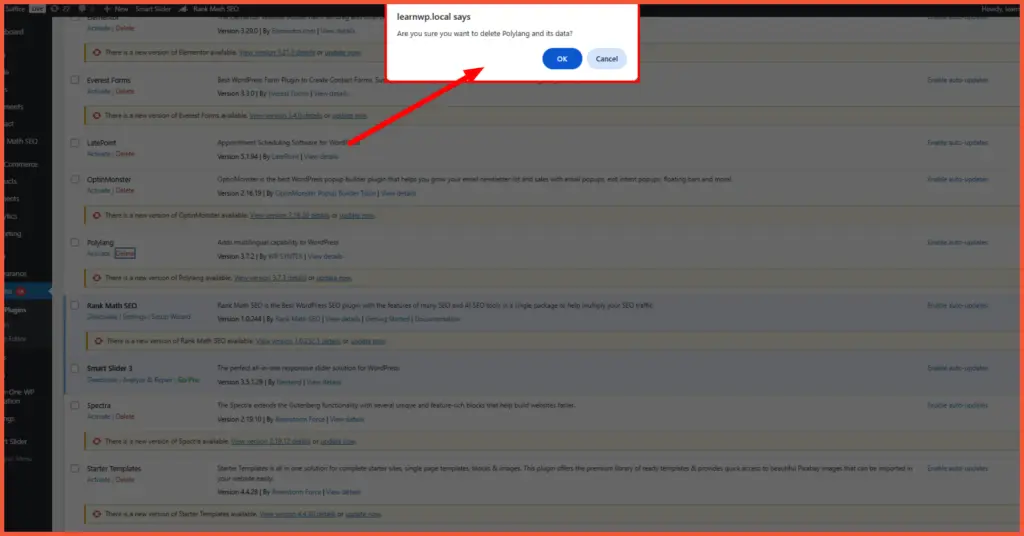
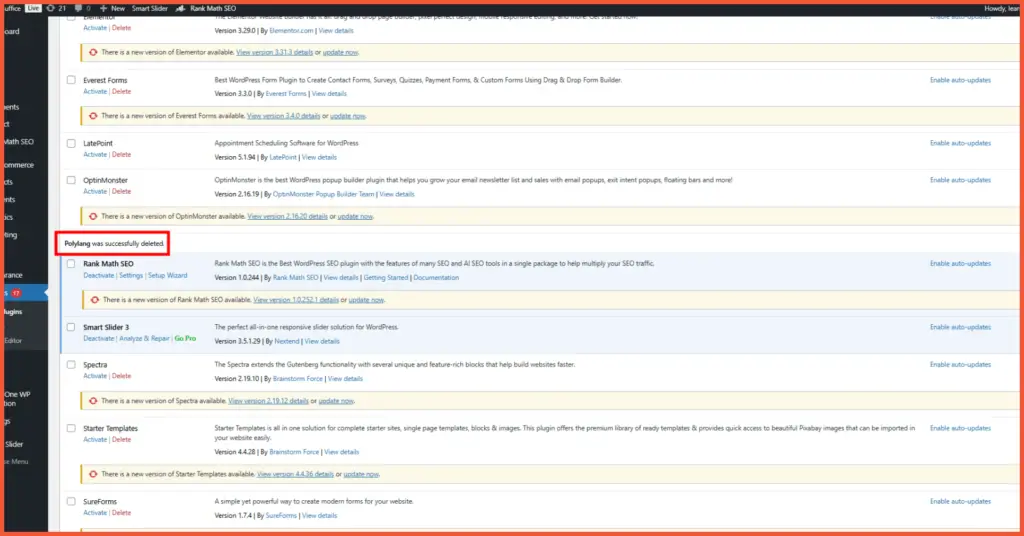
That’s it! You have successfully deleted the plugin from your WordPress website.
Method 2: Deleting a Plugin via File Explorer (FTP or Localhost)
Besides the dashboard, you can delete a plugin through your file manager. This method is useful if you’re locked out of your WordPress admin dashboard due to an error. Here are the steps:
- Open your FTP client (like FileZilla), your hosting control panel’s File Manager, or File Explorer on Windows/Finder on macOS if you’re working on a localhost environment.
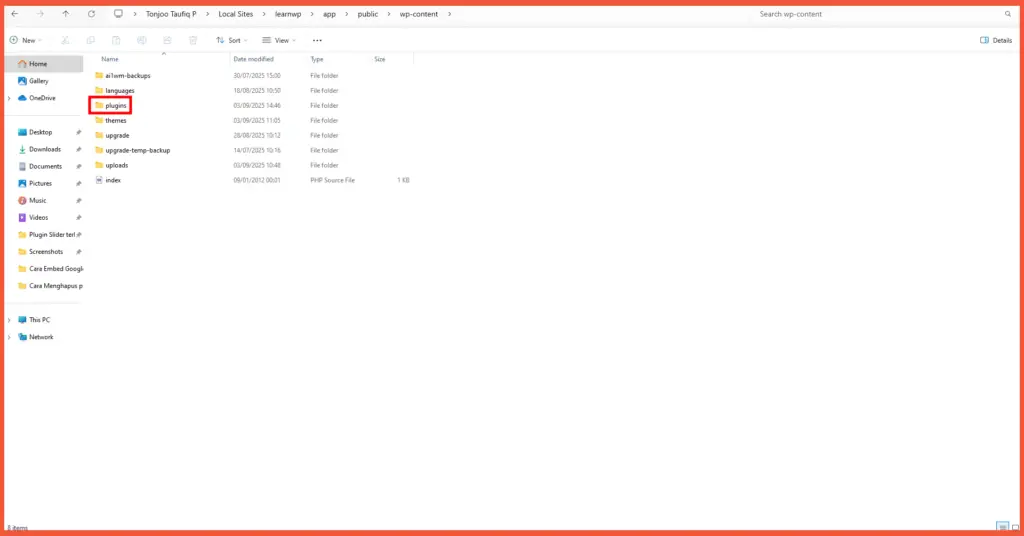
- Navigate to your WordPress installation folder. In this tutorial, we are using a Local setup.
- Find the plugins folder by navigating to the wp-content/plugins/ directory.
- Locate the plugin you want to remove. Inside the Plugins folder, you’ll see other folders, each corresponding to an installed plugin. Find the folder with the name of the plugin you want to delete. For this example, we’ll delete the Elementor plugin.
- Delete the plugin folder. Right-click on the folder and select Delete.
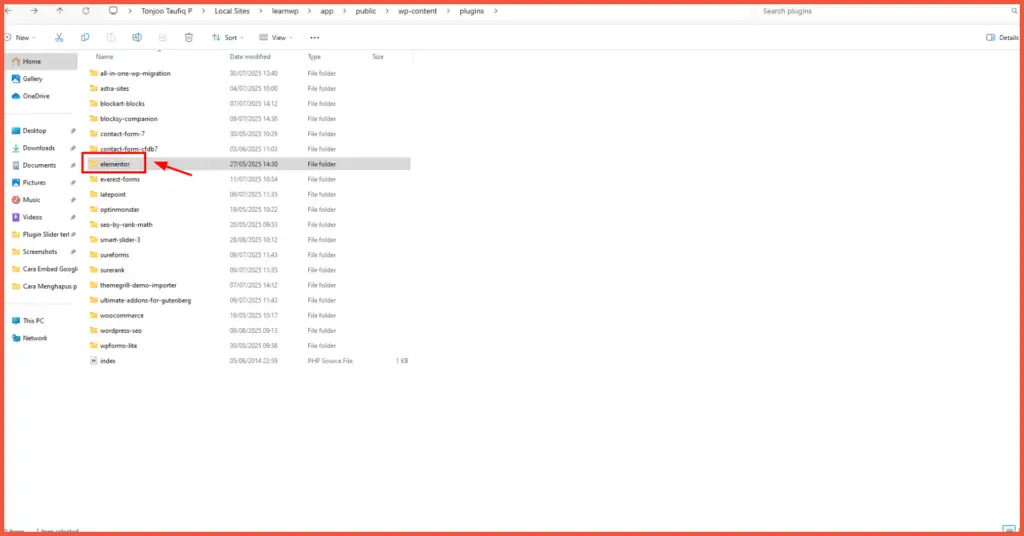
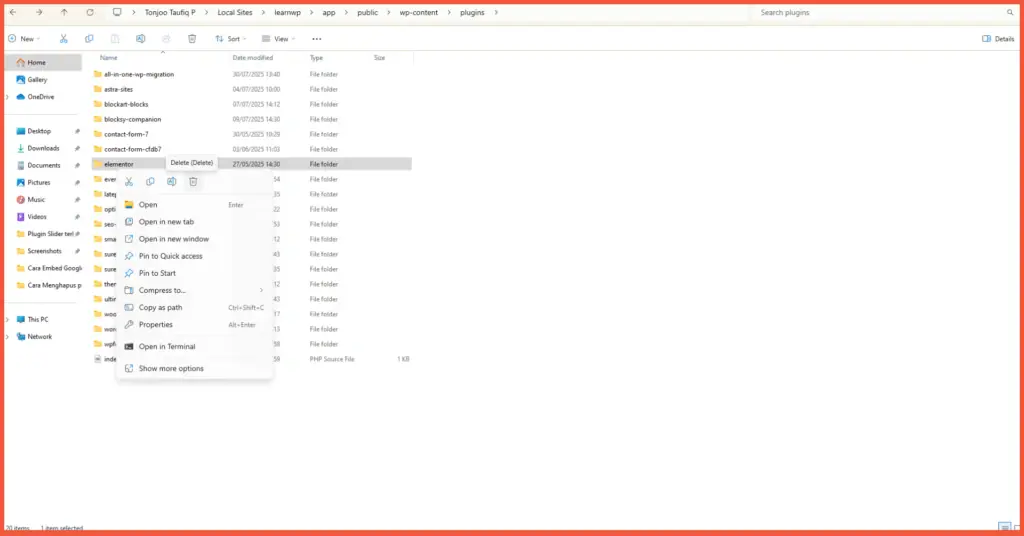
After deleting the folder, the plugin will be completely removed from your WordPress site.
Have You Successfully Deleted or Uninstalled Your WordPress Plugins?
Those are the two main ways to delete or uninstall a WordPress plugin, either through the WP admin dashboard or a file manager. Sometimes, deleting plugins is a necessary task, especially for security and performance reasons. Unused plugins only take up storage and can create dangerous security holes.
Choose plugins that genuinely meet your needs and ensure they are compatible with your version of WordPress. For example, if you want to build an e-commerce site, you can use the WooCommerce plugin. There are many WooCommerce add-ons available to help you manage your online store. You can read our article on the top 10 WooCommerce plugins for building an online store.
If you’d rather not deal with the hassle of managing a WordPress site and want to focus solely on growing your business, leave it to the experts at Tonjoo. We are a professional custom website development service with hundreds of clients, including Gajah Mada University and Polygon Bikes. We are ready to create a sophisticated and functional website tailored to your specific needs.

Read more articles on WordPress, WooCommerce, plugins, and web development by Moch. Nasikhun Amin on the Tonjoo Studio blog.
Last Updated on December 19, 2025 by Moch. Nasikhun Amin
